PRACTICAL IMAGE EDITING
Remove a Temporary Inventory Note While Keeping the Complete Asset Identifier
A temporary inventory remark can sit beside a permanent asset identifier. Removing the remark is a visual cleanup; changing even one identifier character would change which item the picture represents. Before selecting, distinguish the note from the complete identifier and keep a verified reference. This guide concerns your own authorized asset or archive images, not altering identifying information. TextWiper does not validate serial numbers, consult an inventory system or certify an item’s identity.
Published 2026-10-22 · Updated
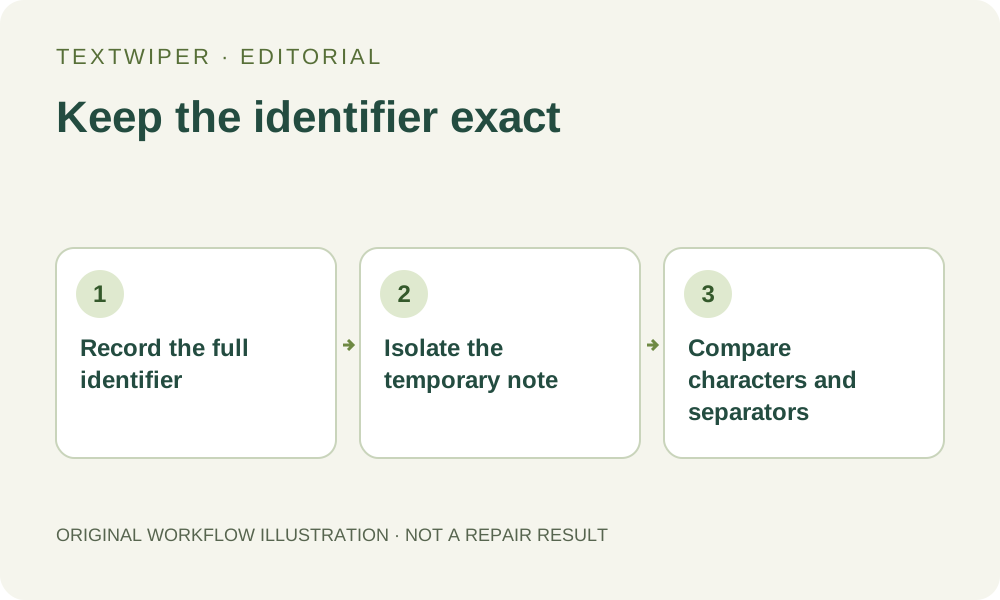
1. Record the identifier as a complete string
Read the unchanged source alongside an appropriate asset record or original label. Include its field name, every character, leading zeros, hyphens and other meaningful separators. A fictional code such as AX-0041-B illustrates why copying only the visible number 41 is insufficient. It is not a customer identifier or a newly processed sample.
Check whether a nearby short string is part of the same identifier or a separate field. A revision suffix, lot field and asset number should not be silently merged or exchanged. If the source is blurred or the record conflicts with the label, resolve the discrepancy through the person responsible for that record before making a presentable delivery image.
2. Define the disposable annotation without rewriting the label
Specify the temporary note by wording and location, such as your own internal request to retake the photo. Establish that it may be removed from the copy while the actual asset label must stay. If a sticker physically covers an identifier, pixel repair cannot reveal the hidden characters with certainty. Request a clearer authorized photograph or source instead.
Prefer the correct editable artwork when the picture is a label design rather than a photograph. If the purpose is correcting an identifier, do that through the appropriate record and design process, not by cleaning a digit in an image. The task here is retaining the existing verified identifier while removing a separate annotation beside it.
3. Build a small manual boundary beside the identifier
Open the authorized JPG, PNG or still WebP. Optional Find text asks for recognition upload permission and can confuse visually similar letters and digits or omit separators. Its output is a location suggestion, not an identity check. You can avoid that request and use Brush directly.
- Zoom until the temporary note, the label edge and the full identifier can be distinguished.
- Select only the note’s visible strokes with Brush, or a safely isolated Area rectangle.
- Use Erase to withdraw green coverage from the field name, character edges, leading zeros and separators.
- Protect visible identifier details where useful, without painting over the note you still intend to remove.
- Check the complete mask against the original and the recorded full identifier before repair.
4. Judge the repair separately from identifier correctness
Quick repair can be a candidate for a small note on a plain margin; consider Smart repair for texture after the boundary is defensible. Neither mode knows whether an O, zero, I or one is correct for your asset. A smooth patch beside a readable but changed code is a failed edit, regardless of how plausible the characters look.
Protection preserves source pixels where it excludes manual removal, including any unwanted overlay that shares those pixels. It does not redraw a correct character or make an unreadable original legible. If you need to widen the mask into a serial character to remove the note, stop and obtain a better source instead of asking the repair to invent that character.
5. Read the candidate character by character
The full repaired result appears by default. Read the field name and complete identifier against your saved reference, from the first character to the final suffix. Check the number of characters and the positions of zeros and separators. Do not let a familiar-looking prefix cause you to skip a different ending or overlook one broken stroke.
Use Show comparison to inspect the boundary, then Hide comparison to judge the entire image. Examine surrounding labels too: the temporary note may sit between two different fields. If you change the mask, the old candidate is invalidated; repair again from the original and repeat all identifier checks. An earlier visual approval does not apply automatically to the new candidate.
6. Verify the actual output and preserve the record boundary
Download the reviewed PNG, reopen that exact file and read the identifier at the size intended for the archive or asset page. Keep the unchanged photo and reference separately. Uploading the edited image to your own system is a separate task; this editor does not update that system, reconcile its records or verify that another person selected the correct asset entry.
Manual selection, Quick repair, Smart repair and downloads are free during beta without an account. Whole-image automatic cleanup is a separate limited sign-in trial with its own upload choice and allowance, and can change content outside a local note. This preservation task does not require it. Accept the output only when both the note removal and the complete identifier check pass.