PRACTICAL IMAGE EDITING
Remove a Draft Note Without Breaking Footnote Markers and Their Explanations
A small asterisk beside a claim and a sentence at the bottom of an image can be one piece of information spread across two places. Clearing a nearby draft note must not separate them. Before manual repair, map the markers to their explanations and identify the annotation that is genuinely expendable. This guide concerns preserving a reference relationship in authorized artwork; TextWiper does not determine which qualifications are required or certify the resulting claim.
Published 2026-10-22 · Updated
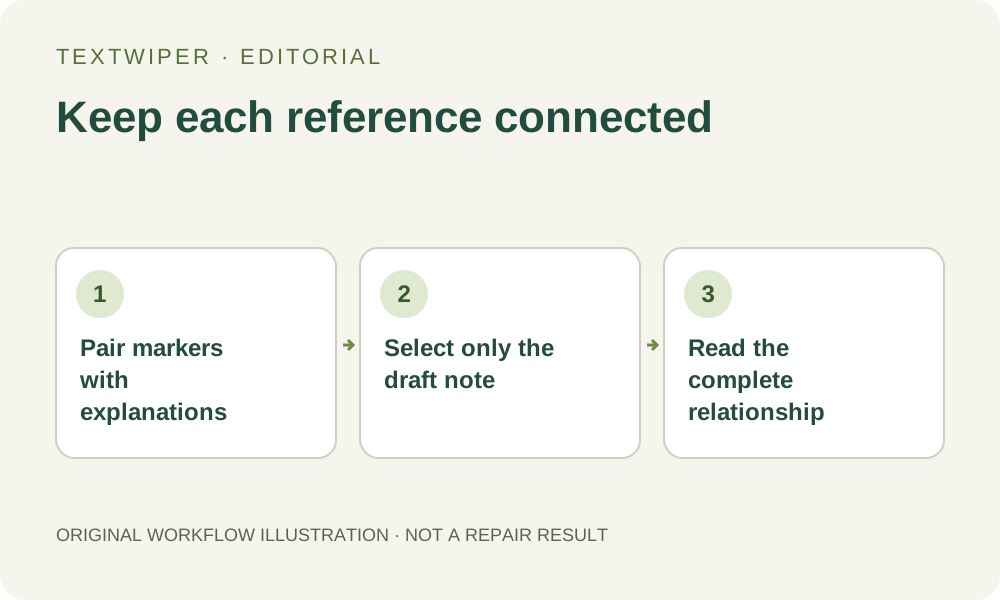
1. Read both ends of every visible reference
Keep the original and read the main statement together with its asterisk, superscript number or letter. Find the corresponding explanation elsewhere in the image. A fictional design containing Result A with an asterisk and a matching lower note illustrates the relationship only; it is not a tested product claim or a recorded repair example.
Check whether one explanation serves several markers or whether similar symbols refer to different notes. Record those pairings before editing. A visually small line can materially change how a larger statement is understood. If you cannot determine the relationship, obtain the authored source or ask the responsible author instead of treating the lower text as decorative clutter.
2. Separate internal drafting remarks from published qualifications
Locate the exact internal note you are authorized to remove, such as a reviewer’s request to adjust spacing. Do not assume that every sentence in smaller type is an internal note. Conditions, sources, ownership information and necessary explanations may occupy the same margin. This article provides a preservation workflow, not advice about which statements may be omitted.
If the actual change is to withdraw a claim or revise its qualification, use the original layout and verified wording in an appropriate editor. Removing pixels from only one end can leave an unexplained marker or an unqualified statement. TextWiper does not rewrite the sentence, move the footnote or update another linked copy of the artwork.
3. Build the selection around the internal note alone
Open a supported still image and zoom into the gap between the temporary annotation and retained text. Brush works without recognition. Optional Find text requires recognition upload permission and may group neighboring notes together, so its returned area must be checked against the reference pairings.
- Locate the precise internal note in the original, including any separate arrow or underline that belongs to it.
- Paint only those unwanted strokes with Brush; use Area only when its rectangle excludes all retained note text.
- Use Erase to withdraw green coverage from markers, punctuation and the explanation’s first and last characters.
- Protect visible retained wording where useful, remembering that protection keeps overlapping unwanted pixels too.
- Inspect both the main statement and the lower explanation before starting repair.
4. Repair the local patch without changing the reference plan
Try Quick repair for a suitable small plain patch, or consider Smart repair for a textured area. Either can leave fragments or alter edges around a crowded note. Neither mode understands the logical connection between a superscript and an explanation. The removal plan, not the apparent size of the text, should govern which pixels are eligible.
Manual selection, local Quick or Smart repair and downloads are free during beta without an account. Whole-image automatic cleanup is a separate limited sign-in trial with its own upload choice and allowance. It does not inherit this local mask as its processing boundary, so do not treat it as an equivalent way to preserve the note relationship.
5. Check meaning after inspecting the complete candidate
The complete result is shown by default. Read every retained marked statement, then read its corresponding explanation. Check the marker itself, separators between multiple notes and the wording that limits or identifies the statement. A missing asterisk or an altered minus sign can be more consequential than a visible background patch.
Use Show comparison to locate a doubtful boundary, then Hide comparison to read the full layout. Check that removing an arrow has not accidentally removed the marker it pointed toward. If a mask revision is needed, the old candidate becomes invalid; repair again from the original and repeat the pair-by-pair reading, including notes outside the last corrected patch.
6. Verify the relationship in the final display context
Download the reviewed PNG and reopen the exact file. Read the main wording and explanation at the size intended for the page or presentation, not only while enlarged. If a later application resizes the image until the explanation becomes unreadable, that derivative needs a separate review. TextWiper does not validate the destination’s display settings.
Stop when the annotation overlaps an essential marker, a note cannot be read reliably, or the relationship remains ambiguous. Obtain the correct design source and revise the complete reference there. Retain the original and a short pairing checklist with your approved output. A neat margin is not a successful edit if the picture now communicates a different qualification.