PRACTICAL IMAGE EDITING
Why White Text on a Transparent Image Can Be Missed by Recognition
White lettering can be visible over an editor’s checkerboard yet lose contrast when a recognition working image is placed on white. TextWiper currently prepares that request with a white backing. This can matter for transparent artwork, but a missed detection alone does not prove the cause. Inspect the source and its alpha first, then decide whether manual color repair or an external transparency edit actually fits the goal.
Published 2026-10-30 · Updated
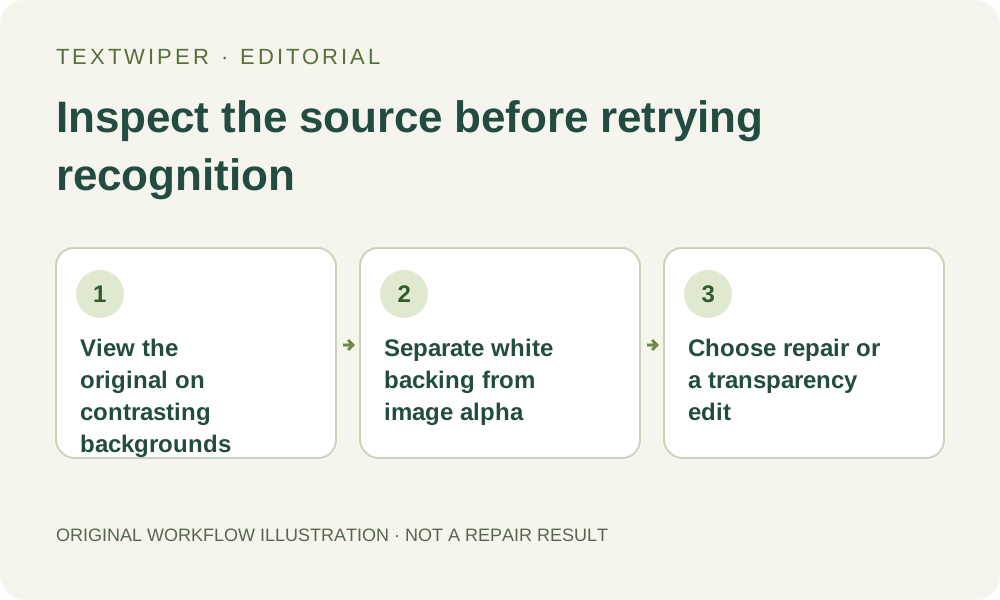
1. Compare the original file on light and dark backgrounds
Keep the authorized PNG unchanged and open it in a viewer that can display transparency against contrasting backgrounds. Identify whether the white words sit on an opaque panel, overlap partly transparent artwork or form isolated letters against transparent space. A white-looking region in one viewer does not establish which of those cases you have.
The editor’s checkerboard is a display aid rather than pixels to include in your deliverable. Do not save a screenshot of the checkerboard as a new source. Record the intended destination background too: a word that is hard to see on white may be conspicuous on the dark website where the actual transparent file will be placed.
2. Understand what the current recognition preparation changes
For an approved recognition request, TextWiper draws a resized working image onto white before encoding and sending it. That request does not carry the editor’s checkerboard as a contrasting background. White or pale lettering whose visibility depended on transparency can therefore have little contrast in the working image even though you can locate it in another viewing context.
This preparation does not replace the loaded original or change its alpha for manual editing. It also does not explain every missing word: size, blur, typeface, available recognition and other conditions still matter. Treat the white backing as a concrete diagnostic possibility, not a newly measured recognition failure or a promise that changing one color will improve detection.
3. Do not turn a temporary contrast aid into the final image accidentally
If you use a dark backing in another application to inspect the original, keep that view separate from the actual source. Saving a flattened dark-background copy produces a different image. TextWiper would then edit that opaque copy; downloading PNG afterwards would not restore the earlier transparent background simply because the extension is PNG.
A deliberately flattened file can be valid when that exact background is the intended final design, but it needs its own approval. Do not create one only to chase a better detection list and then deliver it as though alpha survived. Recognition positions from a separate working file also do not become a portable selection project for the untouched original.
4. Decide whether retaining the existing alpha can meet the removal goal
Manual Quick or Smart repair changes selected color values while retaining the input alpha. This can suit a removable overlay on a genuinely opaque panel inside an otherwise transparent asset. It is not an instruction to make the selected region transparent. Inspect the visible boundary before choosing a manual workflow merely because scanning missed the text.
For isolated white letters whose shape is defined by their opacity, color repair does not erase that alpha silhouette. Their outline can remain visible over another background. Use the editable design or a suitable external transparency editor when removing the letters requires changing opacity or reconstructing a cutout edge. Do not widen a TextWiper mask and expect it to become an alpha-delete command.
5. Use a manual mask only for a suitable, visible color-repair task
When the target is separable on an opaque area, return to the original PNG in TextWiper. Use Brush or Area to cover the unwanted visible pixels, trim with Erase and preserve needed neighboring details with Protect. Inspect green and blue coverage carefully. An empty detection list does not prevent this deliberate manual selection and does not require another upload.
Run the chosen repair and inspect the complete result. Check the lettering itself and the boundary of the transparent asset separately. Blue protection can retain unwanted pixels if it crosses them; it does not create new transparency. If changing the selection, repair again from the original, rather than judging an earlier candidate under a newly drawn mask.
6. Judge the actual transparent output where it will be used
Download an accepted manual result as PNG and reopen it on light, dark and intended destination backgrounds where relevant. Check for a surviving letter silhouette, pale fringe or changed visual edge. A JPG would flatten transparency onto white, so it cannot verify the transparent-file requirement. Keep the source, any contrast-only working copy and the accepted output distinct.
Stop if the required change is really an opacity edit or if essential underlying artwork cannot be established. Manual selection and repair are free during beta; optional recognition has a separate upload choice and temporary limits. Whole-image automatic cleanup rejects transparent inputs and is not a way to preserve this alpha workflow. Diagnose the representation before spending another recognition attempt.