PRACTICAL IMAGE EDITING
The New Image Is Correct but the Website Shows the Old One: Check Its Published Resource Version
If the downloaded image is correct but your own published page still shows the previous lettering, first identify the resource that page is displaying. The image file, the page that points to it and cached responses are separate parts of the handoff. Use the publishing system’s supported asset-version process and verify the delivered version. Another text-removal run cannot update a cached website resource.
Published 2026-11-02 · Updated
1. Establish that the image edit really is complete
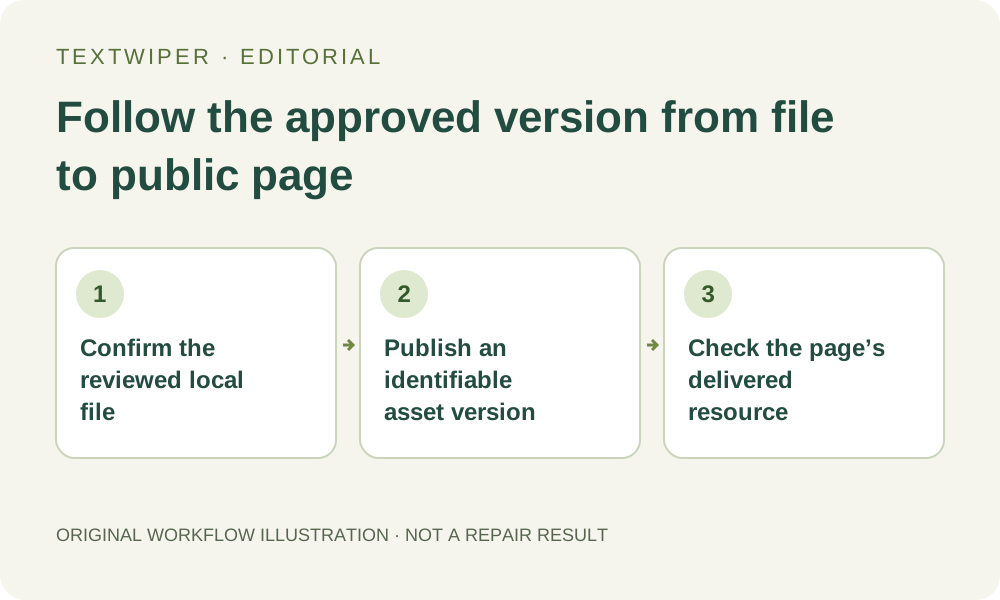
Open the actual downloaded PNG or JPG directly in a trusted image viewer. Check the intended removed text, retained content and dimensions against your approved revision. If the local file is still wrong, stop here and return to the edit. A site-delivery investigation starts only after you have a usable output to publish.
Keep the untouched authorized source and this reviewed output separate. Record a short visible revision cue, such as an obsolete date removed while the product name remains. A familiar filename or a content-library thumbnail is not sufficient to distinguish two revisions. This article describes a publishing check; it reports no newly deployed customer image or measured repair result.
2. Identify the image URL and the page reference separately
Use the site’s asset settings or ask its maintainer to identify the resource actually used by the affected placement. The public page can still point to an older upload even when a new file exists in the media library. If there are responsive sources, first identify the selected candidate as well as the fallback; that is a separate source-selection issue.
For a technical review, a maintainer can inspect the browser’s selected image URL and the relevant response in its normal developer tools. Do not assume that an HTTP 200 status proves which pixels were returned. Open the delivered image and compare its visible revision with the reviewed local file. Keep private request details and credentials out of screenshots or public reports.
3. Use the site’s normal versioned-asset workflow
Where the site supports it, publish the approved file under a new identifiable resource version and update the intended page reference through the normal publishing process. An illustrative name such as product-view-v2.png distinguishes a resource from product-view-v1.png; these are examples, not a required naming scheme or URLs TextWiper creates. Follow the site’s own deployment and rollback rules.
A new URL does not automatically rewrite every page or remove the old resource. Confirm that the published page points to the new version, not merely that uploading succeeded. Some platforms manage version identifiers themselves. Do not add arbitrary query parameters or rename assets repeatedly in the hope that every delivery layer will treat them the same way.
4. Distinguish a fresh cached response from a newly edited file
Web caches can reuse a response while it is considered fresh, and validation can confirm that a stored response is still usable. Replacing bytes at the origin under the same URL is therefore not the same as confirming that every browser or intermediary has received them. The maintainer should check the relevant freshness and validation behavior under that site’s documented process.
If same-URL replacement is required, use the site’s supported update and cache-invalidation workflow for the affected resource. Avoid clearing unrelated assets, changing global cache policies or deleting a visitor’s browser data as a general repair step. A browser reload can help investigate one observation, but it is not proof that all public visitors or all delivery layers now see the new revision.
5. Check the public page after both parts are published
Open the actual published page and inspect the delivered image at the intended placement. If it still looks old, compare the active URL with the published reference: the page itself may also be an older cached document. A clean new asset at one address and an old page still referring to another are compatible observations, not evidence that text removal reversed itself.
Check the relevant narrow-screen placement or alternate crop when the task includes those versions. Record the observed URL or internal version identifier and the revision cue that passed. These observations cover the contexts you actually checked. They do not certify universal cache propagation, search indexing or a fixed waiting time for every hosting platform.
6. Close the handoff without consuming another cleanup attempt
Retain the reviewed image, the publishing revision and a way to roll back according to your site’s process. If the displayed file is correct but surrounding text still refers to the old promotion, update that separately through the content workflow. Pixel editing does not change HTML captions, alt text, asset references or hosting configuration.
TextWiper provides manual image editing and PNG/JPG downloads during beta; it does not administer your website or purge its caches. Optional recognition and the limited whole-image cleanup trial are unnecessary for a stale public-resource problem. Escalate unresolved delivery behavior to the site maintainer with a concise comparison of the expected and observed versions, rather than repeatedly repairing an already approved image.
Sources
- HTTP caching — Explains resource freshness, validation and versioned resource URLs. These web delivery mechanisms are separate from editing image pixels.