PRACTICAL IMAGE EDITING
Automatic Cleanup Trial Unavailable? Continue with a Separate Manual Edit
An unavailable automatic cleanup trial does not necessarily end an ordinary image edit. TextWiper also has an independent manual selection and local-repair workflow. During beta, that route is free without an account and does not consume the whole-image trial allowance. You must choose the pixels to remove and judge the result yourself; it is not an automatic fallback, an extension of the trial or a promise of the same output.
Published 2026-10-21 · Updated
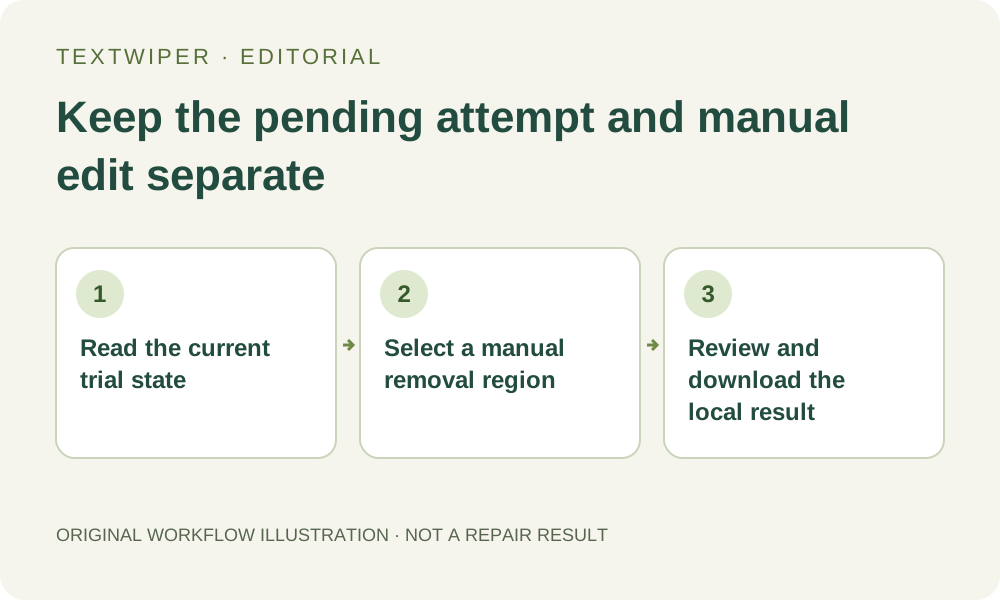
1. Read the state instead of treating every failure as exhaustion
Read the message beside automatic cleanup. A sign-in requirement, unavailable allowance, busy service, unsupported image and uncertain processing attempt are different situations. This tutorial does not establish your remaining allowance. Refreshing does not create more free entitlement.
If the waiting overlay is still visible, the editor is busy: it cannot load another image or run manual repair yet. Keep waiting, or choose its Cancel button to stop waiting. This releases the page for editing; it does not cancel processing already accepted by the server or restore an attempt. Once the overlay closes, follow any displayed same-attempt guidance for that task. Do not refresh or submit again to escape the wait.
2. Decide whether a manual selection suits the image
Use your own or authorized source and identify exactly which visible words or marks may be changed. A few localized labels can be manageable; dense marks across a face or complex texture may require more care than you can reasonably supply. Manual repair still estimates hidden background. It is acceptable to stop and request a cleaner authorized source.
Return to an unchanged source for the manual candidate, or use a previously approved result only when that is deliberately the version you intend to revise. Keep version names distinct. A manual workflow does not mean waiting for automatic output, importing an unreviewed trial candidate or selecting everything in the hope of reproducing the same whole-image result.
3. Build the removal region yourself
Begin only after the waiting overlay has closed and the editor controls are available again. A server task can remain unresolved even though the page is no longer busy. Manual work needs its own removal selection; neither an unavailable trial button nor a recognition list guarantees an exact pixel mask.
- After the page is available for editing, use the retained authorized source or open your intended source copy, then choose Brush or Area.
- Cover only the unwanted lettering and its visible outline or shadow, retaining surrounding background as context.
- Use Erase to trim excess coverage. Add Protect over adjacent visible details that must stay.
- If you choose Find text, read its separate upload permission first, then inspect each suggested selection and correct it manually.
- Review the combined removal and protection regions before running a local repair; keep necessary wording and subject details outside the removal area.
4. Choose a local repair without promising automatic quality
Quick repair can be useful for a suitable small patch with a simple background. Smart repair offers another local option for texture, but it needs browser resources to prepare and can fail or produce an unsuitable patch. Neither mode becomes the whole-image trial simply because that trial is unavailable. Leave the page open while the selected operation is active.
Do not use a pending automatic attempt as a reason to upload the same customer image to another model or create accounts to bypass a limit. For this manual candidate, stay within the selection and tools you chose. If Smart cannot prepare, the documented Quick route may still be considered for an appropriate area, with its own visual review rather than a presumed equivalent result.
5. Accept the complete result, then save the real file
Inspect the full repaired picture before concentrating on the target patch. TextWiper shows the complete result by default; Show comparison is optional when you want to locate the change. Check for leftover letters, soft seams and damage to required text, recognizable faces or material details. Revise the mask or reject the candidate when those checks fail.
Download PNG or JPG as appropriate and reopen the actual file. Keep it separate from the unchanged source and any later automatic result. Manual downloads are not locked behind restoring trial allowance. Saving a reviewed candidate gives you a usable checkpoint, but it does not prove that a different pending task has completed or been cancelled.
6. Continue only when the next state is clear
If the manual result suits the intended use, use that specific reviewed file. If it does not, preserve the source and pause rather than repeatedly regenerating or assuming that a payment is required. The limited trial creates no subscription or payment by itself. This article does not enable a paid fallback, increase limits or guarantee that future free capacity will become available.
After cancellation, the server task can still be unresolved while the page is available for manual work. If you later check it, follow the same-attempt guidance and review that output separately. Do not refresh or resubmit to escape uncertainty. A service failure does not authorize a model switch and a new submission of the current image.