PRACTICAL IMAGE EDITING
Smart Repair Is Still Preparing: Check Loading Before Retrying
A preparation message is not a repaired picture, and a progress indicator is not a promise of remaining time. Smart repair loads browser resources before it can calculate an edit. This checklist helps you identify that stage, stop safely when needed, and keep control of the selection instead of repeatedly starting the same job.
Published 2026-10-18 · Updated
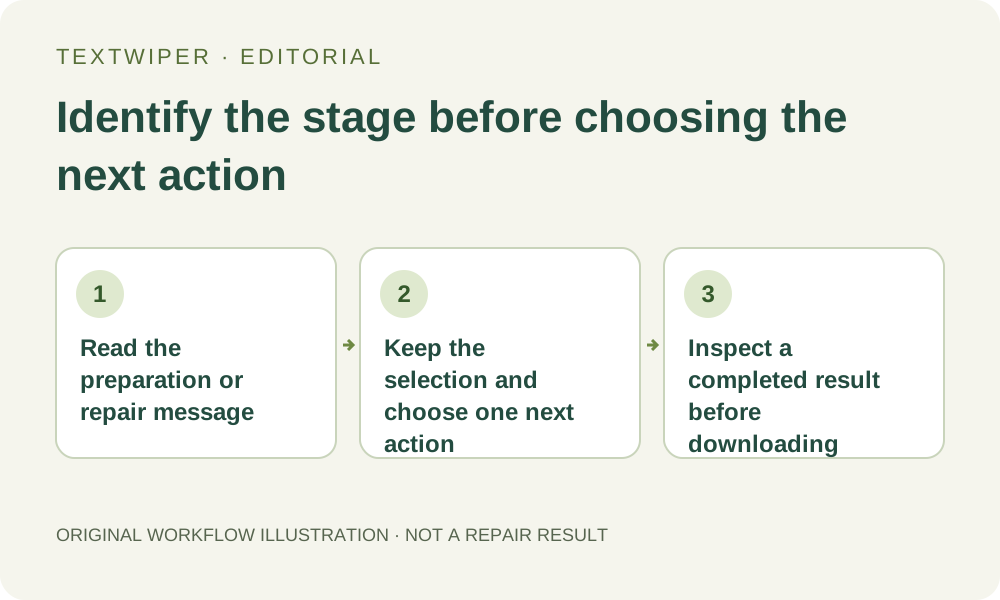
1. Confirm which repair you actually started
Open an image you own or are allowed to edit and identify the button you used. This article concerns manual Smart repair of a green selection. Find text is a separate recognition request, and Remove watermarks automatically is a separate whole-image trial. Waiting for either of those does not tell you whether the browser has loaded Smart repair resources.
Before trying again, check that the intended text is selected and nearby details are protected. A missing selection, an image that cannot be opened, and an unavailable recognition service are different problems. Smart repair does not require a correct transcript when you have painted a valid removal area. Keep the original file outside the page.
2. Read preparation as preparation, not as an unfinished export
The initial status can show Loading AI runtime, a Preparing Smart repair download message, or Preparing Smart repair resources. The model file is about 28 MB, with additional runtime files needed by the browser. These files provide the editing capability; loading them is not uploading your photograph for manual repair.
Downloaded megabytes describe resource transfer, not a percentage of the finished picture. The browser must still prepare the resources and process your selection. Connection speed, browser support and device resources affect the experience. A previously cached file may help another attempt, but cache retention and preparation speed are not guaranteed. Do not infer a fixed completion time from the bar.
3. Choose one response to the visible state
- If the resource download is advancing and you want to continue, keep the current page open. Avoid refreshing merely to make the indicator start over; a refresh also loses the in-memory workspace.
- If the editor says Smart repair could not load, check the connection and choose whether to retry once after a concrete change or use Quick repair. Repeated identical clicks do not repair the underlying connection.
- If preparation or processing fails, read the message before changing the image. Messages can suggest Quick repair, a smaller selection or a smaller image; they do not diagnose every device problem.
- Use Cancel when you want to stop the manual attempt. The editor keeps the current image and selection available; wait for the controls to become available before choosing another action.
- If you must close the page, retain the original and any already downloaded result first. There is no saved repair queue waiting to resume in another tab.
4. Recognize when image processing has started
A message such as Repairing selected area with AI indicates a different phase from downloading resources. A large selection can show that a reduced working size is being used. This concerns the calculation area; it is not proof that fine texture beneath the lettering can be reconstructed accurately. A narrow, justified mask usually gives you a more inspectable task than a large rectangle.
Cancel stops the manual worker rather than pausing an invisible server job. A later attempt starts a new calculation; any reusable download cache is separate from a saved processing session. Do not keep several tabs calculating the same edit as a workaround. Changing the mask after a failed attempt is a new selection decision, not a continuation of a partial result.
5. Use Quick repair as an explicit fallback
After cancellation or failure, inspect the retained green and blue areas, select Quick repair, and start it explicitly. Quick repair uses its own browser resources and can also fail to initialize; it is not guaranteed to work offline. It can be a useful fallback for a small label on a smooth background, but it may smear texture or edges.
There is no automatic paid fallback in this workflow. Manual Smart and Quick repair do not consume the separate whole-image automatic trial allowance. Starting that trial instead would be another operation requiring sign-in, availability and separate upload permission. A resource-loading problem alone is not a reason to submit the photograph to it.
6. Accept only a real, reviewed result
Wait for the editor to report a ready repair and inspect the full result. Preparation ending successfully does not prove that the unwanted lettering is gone. Look at the entire selected area, its boundary and protected detail. Use comparison only when helpful, then return to the complete result before deciding whether to keep it.
Download the reviewed PNG or JPG and reopen it. If the patch is unacceptable, revise the selection or use a better authorized source rather than treating a technically completed run as a good edit. This guide describes the implemented status and recovery paths; it supplies neither a new performance benchmark nor a guarantee for every browser or device.