PRACTICAL IMAGE EDITING
A New Image Did Not Open? Confirm Which Picture Is Still in the Editor
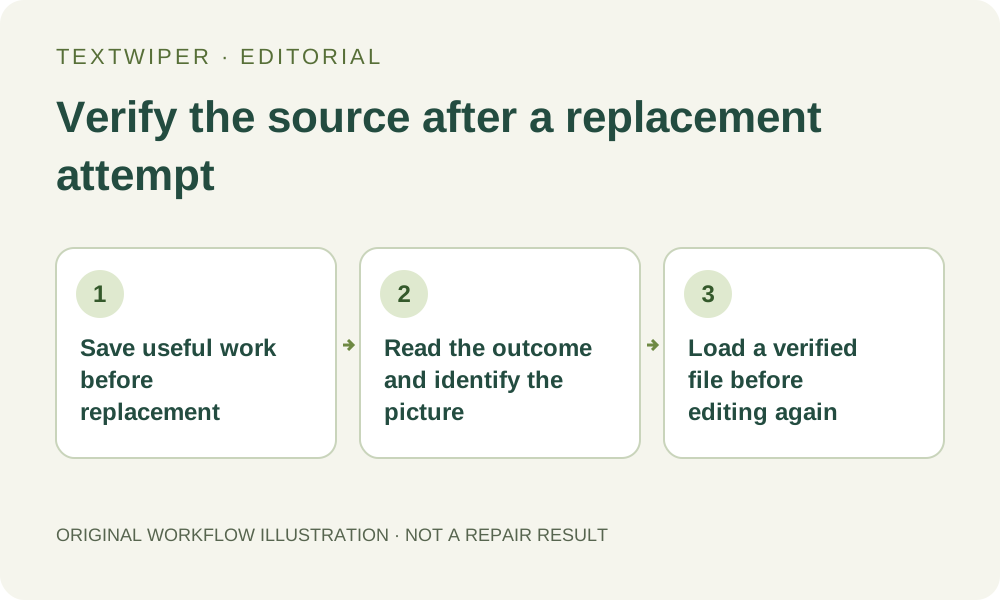
Choosing New image is an attempt to replace the workspace, not proof that the replacement opened. If the file picker was canceled or the selected file was rejected, the earlier picture can still be visible. Read the error and identify the current source before brushing or requesting recognition, so an edit intended for a new picture is not accidentally applied to the old one.
Published 2026-10-28 · Updated
1. Preserve what matters before selecting New image
Keep the authorized source in your own storage and download any current result worth retaining. Open that download to check it before switching files. The editor does not maintain a permanent album of each image you open, and a pending selection is not saved inside a PNG as a reopenable project.
If you need the current mask again, make a short external note about its target and protection choices. That note is a plan for rebuilding, not an exportable mask. A successful replacement starts fresh detections, selections, strokes and result state. Do not use a loading failure as your strategy for preserving the previous draft.
2. Distinguish canceling the picker from rejecting a file
Opening a system file picker and canceling it does not choose a replacement. Check the existing workspace rather than assuming the visible picture came from a new file. The same applies when the browser never delivered the file you meant to drop; an intended source and a successfully loaded source are different things.
When a selected file produces an error, read its actual message. A file can fail the supported-format, size or dimension checks, or fail to decode. Do not infer success from the fact that the picker closed. Repeatedly requesting recognition at this point may process the earlier loaded picture instead of solving the new file's problem.
3. Identify the picture with several independent cues
Compare the displayed filename and dimensions with the replacement you expected, then inspect distinctive visual details. Two versions can share a filename and pixel dimensions. An old corner annotation, a different crop or a known object position can distinguish them more reliably than the name alone. If a result is visible, use available comparison deliberately to understand the underlying source.
Check the target location before making a mark. A leftover detection list, old protection or an already repaired area can be another reason to pause and verify the workspace. Do not treat any one cue as a universal recovery guarantee. If you cannot establish which version is loaded, stop editing until you have a known file to open explicitly.
4. Understand what a normal early rejection can leave behind
The current loader checks the proposed file and decodes it before resetting the image canvases. An ordinary validation or early decoding failure can therefore leave the earlier workspace visible. This explains why an error and an old picture can appear together; it does not mean the new file opened successfully or was automatically converted.
That ordering is not a promise that every browser error preserves a draft. A later drawing failure, memory problem, page reload or closed tab is a different condition. Preserve useful output whenever it is still available, and do not claim an automatic recovery that you have not checked. Avoid clearing the workspace merely to hide the error before saving something you still need.
5. Prepare a suitable replacement rather than renaming the rejected file
Open the intended source in an appropriate image application and save a separate valid JPG, PNG or still WebP when conversion is needed. A renamed extension does not convert a webpage, PDF, animation or unsupported image into a supported still picture. Keep the original and verify the saved copy's visible content, orientation and dimensions.
Check the current manual limits: up to 10 MB, 4096 pixels per side and 16 megapixels. If a resize is necessary, make it deliberately outside the editor and accept the corresponding working resolution. Choose New image again only after any active operation has ended, select the verified copy and wait for its actual outcome instead of repeatedly submitting the same unsuitable bytes.
6. Confirm a fresh workspace before rebuilding the edit
After successful loading, look again at the complete picture, filename and dimensions. The previous detections and drawn mask do not transfer to this new source, even if it resembles the earlier one. Rebuild the intended selection on the correct image, or request optional recognition with its upload permission, then inspect the new positions before repairing.
Review and download the accepted result under a distinguishable name. If loading still fails, retain the verified source and describe the fixed error and stage without sharing private content. Manual editing is free during beta without an account; moving to the limited whole-image trial is not a general workaround for an unreadable file or an unidentified workspace version.