PRACTICAL IMAGE EDITING
Clean an Added Note from a Table Screenshot Without Changing Cell Meaning
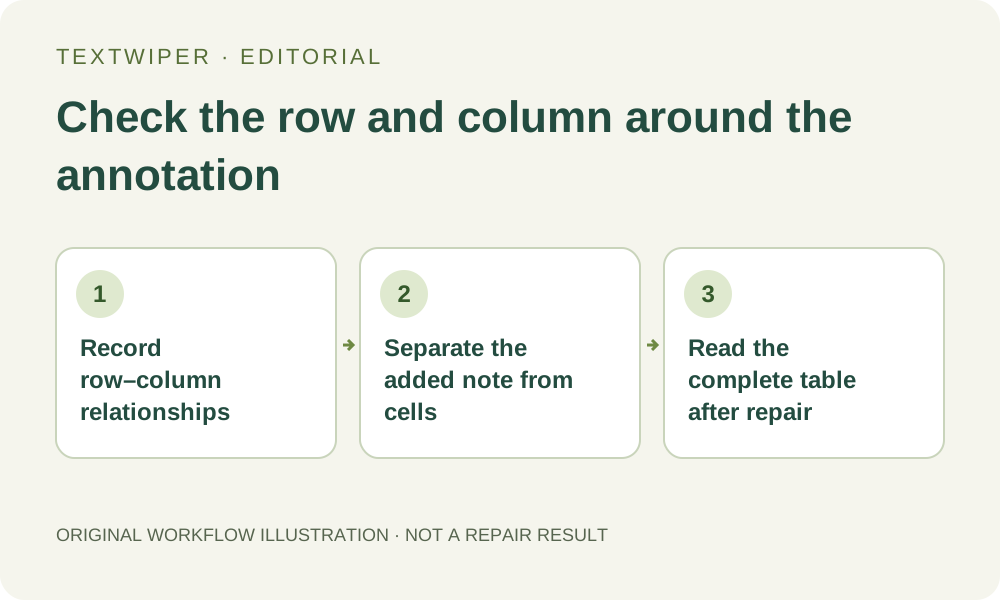
Before cleaning a note from a table screenshot, identify which row and column every nearby value belongs to. A readable number in the wrong cell communicates a different fact. Prefer hiding the disposable annotation in the source spreadsheet or document and exporting again. When only an authorized flattened image is available, use a bounded manual edit and review the table as a two-dimensional record, not a list of detected words.
Published 2026-10-30 · Updated
1. Find out whether a new source export avoids reconstruction
Open the source spreadsheet, document or design when you have it. Determine whether the unwanted note is a separate comment, drawing or review overlay that can be hidden for an authorized presentation export. Use that application’s own controls; TextWiper cannot open a workbook, change cell formulas or turn a screenshot back into a spreadsheet.
Keep the source and the unedited image. Define this as cosmetic cleanup of a permitted copy, not correction of business data or deletion of a necessary qualification. If the note records a real caveat that the audience needs, its removal changes the meaning even when no cell pixels move. Resolve that content decision before selecting an area.
2. Make a local row-and-column reference
Identify the row heading, column heading and displayed value around the target. Include units, decimal marks, minus signs and whether an apparently empty cell is genuinely blank. In an illustrative table, a zero under Approved is not interchangeable with an empty cell under Pending. Use the actual source to establish those relationships rather than inferring them from the repair.
Check merged headings, wrapped labels and a note that spans several cells. A visible vertical rule may belong to a grouped heading, while a line break may continue the same row label. Write enough reference information to revisit the affected cells after editing. A filename or a count of recognized regions cannot preserve this two-dimensional meaning.
3. Treat recognition as a locating aid, not table extraction
Open the supported still image and inspect it at a zoom where the small values and grid lines can be distinguished. Optional Find text has its own upload permission. Compare any returned wording with the table itself; recognition suggestions do not provide a verified cell model, row association, formula evaluation or a spreadsheet export.
Do not assume the order of text items in the sidebar is the reading order of the table. Locate each chosen region on the canvas using its row and column. A returned box can include a unit or neighboring value along with the disposable note. Deselect a region that is too broad and use a deliberate manual selection instead.
4. Select only a note that is visibly separable from the cells
Use Brush for an irregular review mark, or Area only for an isolated annotation whose rectangle excludes meaningful cell content. Erase withdraws excessive green coverage; Protect can preserve visible rules, headings and values beside it. Inspect intersections as well as the center of the annotation so a small stroke does not become a missing decimal or a false grid segment.
When the note covers a number or a critical divider, do not ask repair to invent the table’s missing fact. Blue protection retains the input pixels, including an overprinted note at those same coordinates; it cannot recover the underlying cell. Obtain a fresh export or reconstruct the illustration from the verified source in its native application.
5. Review the table by rows and by columns
After an appropriate manual repair, inspect the complete result with comparison hidden. First read each affected row from its heading across the relevant values. Then read down each affected column from its heading. This second pass can expose a value that appears plausible on its own but has lost the divider or spacing that identifies its cell.
Compare signs, units, zeros and blanks with your reference, and check the annotation boundary for fragments resembling punctuation. Use Show comparison to investigate a doubt, then return to the full table. Quick or Smart can produce a visual patch but cannot certify a financial total, an inventory quantity or a formula result. Reject the candidate when the relationships remain uncertain.
6. Verify the saved presentation copy without replacing the data source
Download a reviewed PNG and reopen it at the intended report or slide size. Check that small headings and cell separations remain readable after placement. The screenshot is an illustration, not an updated workbook, editable table or validated data export. Keep the authoritative source and the accepted presentation image distinct.
If the receiving document needs selectable cells or accessible tabular data, rebuild or publish the table through a suitable document workflow instead of relying on a cleaned raster. TextWiper does not create that structure. Manual selection, repair and downloads are free during beta; the limited whole-image trial is unnecessary for this narrowly bounded annotation task.