PRACTICAL IMAGE EDITING
Remove Text from an Image or Extract the Words? Choose the Output First
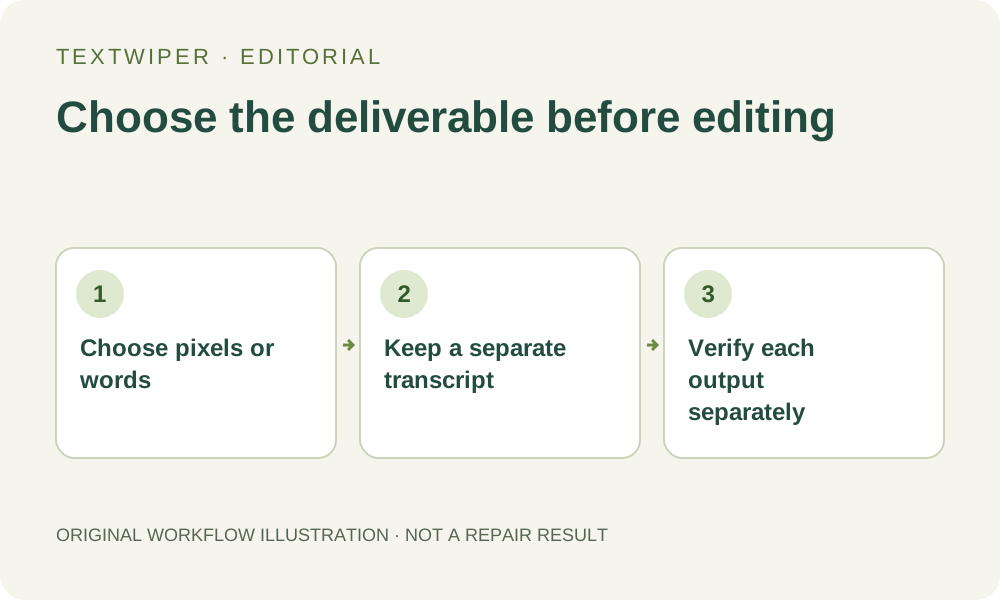
A request to “get the text out of a picture” can mean two very different jobs: make the words disappear visually, or obtain words you can copy and edit. Choose the required deliverable before selecting anything. TextWiper uses optional recognition to help locate image regions for removal; it does not provide a transcript-export or document-reconstruction workflow. If you need both a transcription and a cleaned background, plan and verify those outputs separately.
Published 2026-10-22 · Updated
1. Describe the file you actually need
Ask whether the next person needs a picture with an annotation removed, a plain-text quotation, or a document whose paragraphs can be rearranged. These deliverables have different acceptance checks. A hypothetical meeting-note image only illustrates that distinction; this guide does not present a new recognition test or a processed document sample.
For visual cleanup, the deliverable is a reviewed image. For transcription, every meaningful character and its reading order matter. For an editable layout, fonts, paragraphs, tables and placement may matter too. A list of detected words is not evidence that any of those documents has been created. Record the intended output in your own task note.
2. Obtain the words before removing them when both are needed
Keep the unchanged image and check for the original authored document. It may already contain the correct copy and layout, avoiding transcription from pixels. If only a flattened image exists, use an appropriate separate transcription or document tool, or transcribe a short authorized passage manually. Those actions take place outside TextWiper and have their own privacy choices.
Proof the transcription against the source before treating it as reusable text. Read names, punctuation, numbers and column order; line breaks on an image do not always indicate paragraph boundaries. Save that checked text separately. Do not erase the only visible reference first and expect a repaired image to supply the missing words afterward.
3. Use recognition only for the part TextWiper supports
Open an authorized JPG, PNG or still WebP when you have decided that visual removal is required. Find text asks for recognition upload permission before sending a resized working image to TextWiper and its recognition providers. It can return selection suggestions, but it is optional: you can work with Brush without making that request.
Inspect the actual selected areas rather than treating the list as a transcript. A box may include several words, omit a symbol or contain a recognition mistake. Words and Characters expose the positions that are actually available; they do not reconstruct a text layer. This workflow has no TXT, Word or searchable-PDF export to rely on.
4. Make the visual edit as a separate operation
Select only the annotation you intend to remove. Avoid selecting the whole paragraph merely because the transcription has already been saved. The surrounding picture still needs its own narrow mask and quality review. Protect preserves visible input pixels; it cannot discover the original scene underneath overlapping letters.
- Zoom into the target and use Brush or a safely isolated Area selection to cover its visible strokes.
- Use Erase to withdraw excess green coverage, and Protect for nearby details that must remain.
- Try Quick repair for a suitable plain patch or consider Smart repair for texture.
- Inspect the complete candidate, including useful text that was meant to remain.
5. Check the image and transcription with different questions
The editor shows the full repaired image by default. Use Show comparison when you want to locate the visual change, then return to the complete result. Look for letter fragments, disrupted edges and altered retained wording. A correct transcription does not prove that the repaired background looks appropriate.
Conversely, a convincing clean image does not validate the separately transcribed text. Reopen the actual downloaded image and the saved transcript independently. Check each against the original and label their roles clearly in your own storage. If you later retype the words into another design application, proof that new layout again.
6. Stop at the boundary of the requested output
If your only goal is copying the words, there is no need to repair the image here. If your goal is a translated or reflowed design, use a suitable layout application after checking the source copy. TextWiper does not translate the image, typeset replacement wording or close the space left by deleted text.
Manual selection, Quick repair, Smart repair and image downloads are free during beta without an account. The whole-image automatic cleanup trial is separate, limited and requires sign-in and its own upload choice; it is not a text-extraction shortcut. Keep the original and accept each deliverable only after its own review.