PRACTICAL IMAGE EDITING
Clean an Added Label Near a Linear Barcode and Verify the Scan Value
When an added note sits near a linear barcode, protect more than the dark bars. Keep its surrounding clear space and human-readable characters, and check the decoded value after export. If the note covers any of that content, return to the original barcode artwork instead of asking repair to guess it.
Published 2026-11-01 · Updated
1. Establish which information must still be read
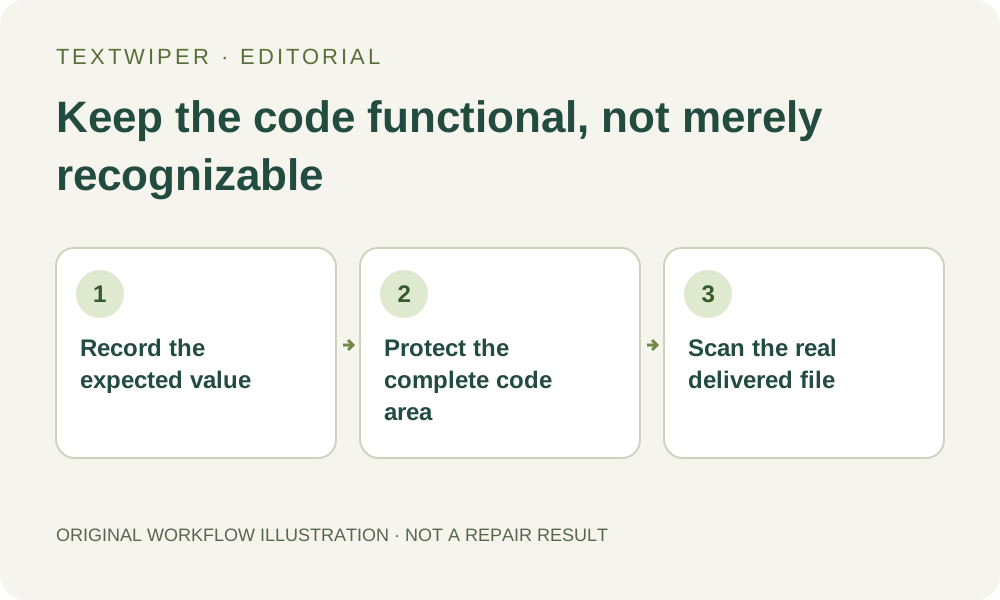
Use packaging or artwork you own or are authorized to edit. Save the original and record the expected barcode value from a trusted product record. Distinguish a temporary review note from the digits that belong to the code; the digits below the bars may look like ordinary removable text.
A text-recognition list is not a barcode decoder. Recognizing a nearby number does not verify the encoded value, and not detecting a graphic does not mean it is safe to remove. Decide whether the required deliverable is only a presentation image or functioning barcode artwork before editing.
2. Treat the empty margins as part of the protected area
GS1 Australia explains that linear barcodes have clear zones before the first and after the last bar, and that reduced margins may prevent scanning. Its guidance also includes human-readable characters. Exact dimensions depend on the barcode type and application; use the relevant specifications rather than a universal guessed padding.
Locate the full code area, its clear margins and printed characters in the source. Protect that complete area with the blue Protect tool, including apparently empty background that must remain clear. If your note overlaps those margins or bars, obtain a clean authorized barcode source instead of reconstructing the symbol.
3. Select only the separate added note
Open the correct image in TextWiper and zoom in until the gap between the note and the protected code is unambiguous. Brush or Area can mark a separate note without scanning. Use Erase to withdraw excess green coverage; it changes the proposed removal, not the underlying image immediately.
Find text is optional and asks permission to send a working image. If you use its suggestions, inspect every selected region and exclude the barcode digits. A large detected rectangle that includes both the note and code is unsuitable without manual refinement. The selected item count cannot describe the safety of that boundary.
4. Inspect bars and spaces after one manual repair
Choose Quick for a small note on a plain background or consider Smart for surrounding texture. Both are manual repair candidates, not barcode-preservation modes. Run the chosen repair once, read the full result, then open comparison when you need to locate a suspicious edge.
Check the first and last bars, the narrow spaces, the full bar height, each readable digit and both clear margins. Blue protection cannot recover information that was already hidden in the input. Do not accept a visually plausible regenerated bar pattern, and do not switch to whole-image automatic cleanup to repair missing code data.
5. Test the file that will actually be used
Download PNG for a review copy and reopen it outside the editor. In your existing scanning workflow, read that actual file or its intended final-size presentation and compare the decoded value with the trusted record. Keep the result associated with the source so another similar product is not substituted.
A successful phone scan is a useful check, not a formal barcode quality grade or assurance for every scanner and print surface. If the image becomes printed packaging, repeat the required print-quality verification through your established process. The GS1 source explains the distinction; TextWiper does not provide a verification report.
6. Keep the boundary between cleanup and code creation
If any required part is covered, damaged or uncertain, replace it from your original barcode generator or packaging source in a suitable design tool. That is a different task from filling a separate review note. Do not invent digits, redraw guessed bars or describe repair as recovery of the original encoded data.
Save the accepted file, expected value and review note separately from the working page. Manual editing and PNG/JPG downloads remain free during beta; the limited whole-image trial is separate. This workflow adds functional checking to the edit, without claiming that a new barcode sample has been tested here.
Sources
- GS1 Australia: Creating and printing barcodes — Supports the clear-zone, readable-character and print-quality boundaries. It does not validate a TextWiper output or prescribe one margin for every barcode.