PRACTICAL IMAGE EDITING
Remove a Label from Your Map Illustration While Keeping the Route
A label on a flattened map can overlap a route, a junction or the symbol that explains a line style. For your own presentation map or an authorized schematic, define what the label means before removing it. Keep the route, legend and orientation readable, and treat any hidden path as unknown. TextWiper edits image pixels: it does not consult map data, validate coordinates or produce a reliable navigation update.
Published 2026-10-21 · Updated
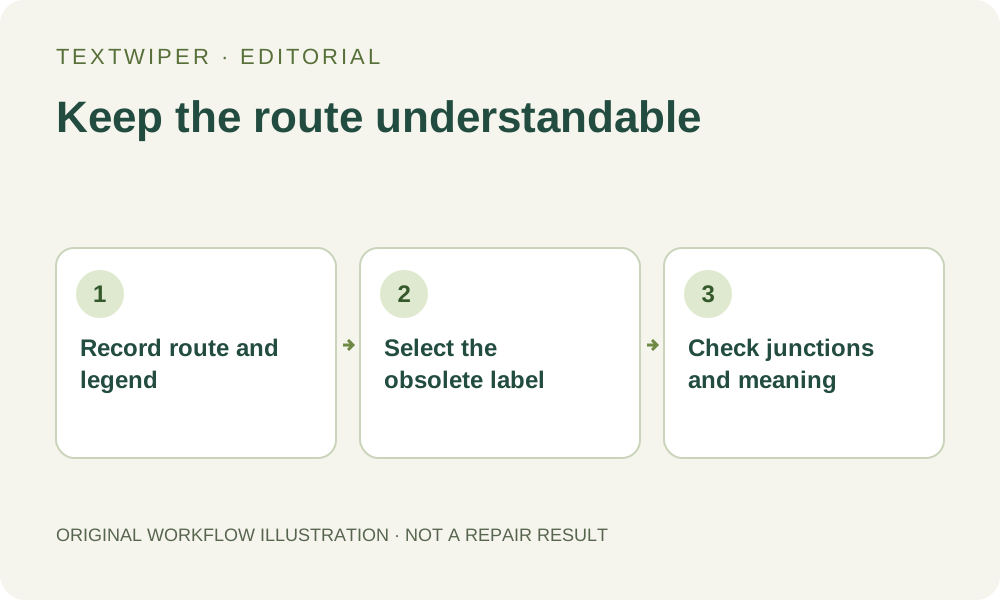
1. Choose an illustration edit or return to the map source
Use a map you created or are authorized to modify. If the editable project or the original mapping data is available, revise the label there and export a new illustration. That route keeps explicit geographic objects and label placement. A flattened screenshot has only colored pixels, even if it originally came from an interactive map.
Define the copy’s purpose. Removing a temporary meeting note from a presentation sketch differs from updating a road name or changing an emergency route. For directions or other accuracy-dependent use, obtain a current, suitable map instead of reconstructing obscured geography. This guide concerns visual cleanup of an illustration, not a claim that a map is current or safe to follow.
2. Make a route-and-symbol inventory before selecting
Follow the relevant route from its visible start to its end. Note every turn, branch, junction, arrowhead and endpoint near the unwanted label. Read the legend: a dashed blue path and a solid blue road may have different meanings. Identify any required credits or attribution and keep them unless you have a separate basis for changing them.
Check orientation, scale markings and distinguishing landmarks. A label can cover only one tiny symbol while hiding the information that differentiates a station, entrance or crossing. Record which visible features must survive. Do not infer that two line ends connect merely because they align on the screen; the concealed area may contain a junction or a gap.
3. Build a small mask around the annotation
Open a JPG, PNG or still WebP copy. Find text is optional and asks for recognition upload permission; it may also detect street names and legend entries that should remain. The editor does not know which words are temporary. Leave those items unselected, and use manual controls for an irregular note.
- Zoom into one obsolete label and use Pan to inspect its full boundary.
- Use Brush for letters close to a route; reserve Area for an isolated label on genuinely unused background.
- Use Erase to withdraw green coverage from route segments, endpoint symbols and neighboring legend text.
- Protect clear, visible route details beside the label. Where text and route share pixels, protection retains both.
- Inspect crossings and the complete mask before running repair. Stop selection if an important hidden connection would need to be invented.
4. Repair the label area without treating the fill as geography
Quick repair can be a candidate for a small annotation over an even map background. Smart repair may produce a different fill where the illustration is textured, but neither mode reasons about roads, distances or access. Keep the same mask when comparing candidates. A smoothly extended line can look convincing while introducing a turn that was never present.
Manual selection, Quick repair, Smart repair and downloads are free during beta without an account. Whole-image automatic cleanup is a separate limited single-image sign-in trial with its own upload permission and available allowance. It may modify the whole map. It is not a route-preservation mode and is unnecessary for the local manual selection described here.
5. Review the route first and the patch second
The full result is shown by default. Follow the route in order again, then inspect each nearby junction, turn, arrowhead and endpoint against the unchanged image. Read the legend and check line color, dash spacing and width. A removed word fragment can resemble a new small symbol; a repaired gap can join two routes that previously remained separate.
Open Show comparison to locate changes, then Hide comparison to assess the complete illustration. Check the map at its intended display size, where a thin broken route may disappear. If you revise the mask, repair again from the original. A visually acceptable patch still provides no independent evidence about the original concealed route or real-world geography.
6. Export a reviewed illustration or choose a more accurate source
Download PNG, reopen that actual file and repeat the route-and-legend checks. Preserve the original separately and describe the output as an edited illustration where the context requires it. Keep any replacement labels in the source design application; TextWiper does not add map labels, coordinate references or editable paths.
Stop if the unwanted wording hides a junction, changes the route’s interpretation or cannot be removed without guessing an important detail. Use the map source, redraw your own schematic from verified information or retain the label. Do not present a plausible pixel repair as a verified navigation map. The stopping condition is route uncertainty, not merely whether the background looks untidy.