PRACTICAL IMAGE EDITING
Clean Temporary Floor-Plan Notes While Keeping Dimensions Attached to the Right Features
A temporary presentation note can be removed from a floor-plan image only after you identify which dimensions and layout symbols must remain. The useful check is not simply whether straight lines look tidy: a retained number must still refer to the same wall, opening or extension line. Keep the editable drawing as the source for any actual layout change.
Published 2026-11-01 · Updated
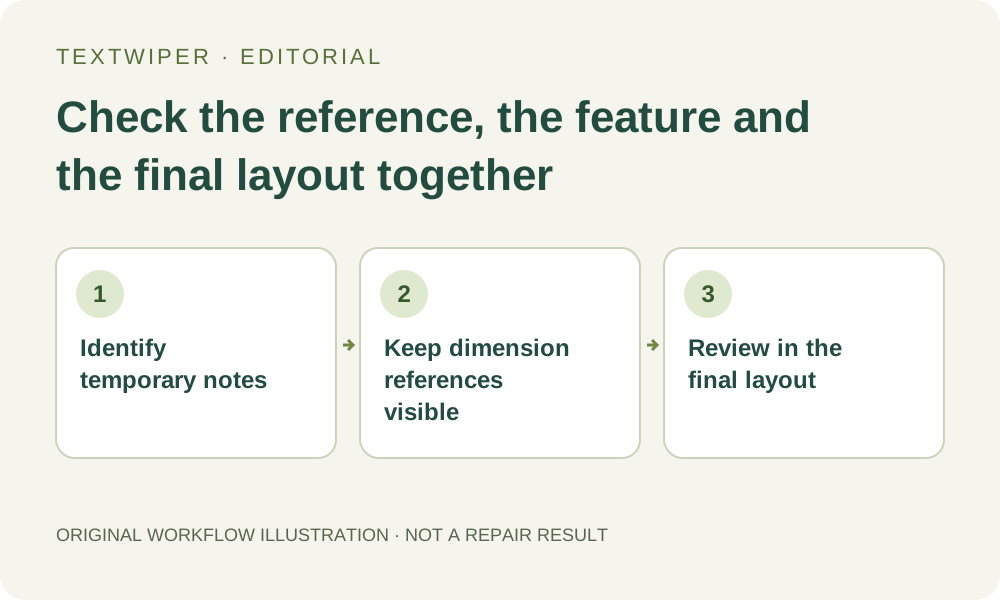
1. Separate presentation cleanup from changing the plan
Start from your own or an authorized plan and keep its original drawing file when available. List the added meeting note, temporary room nickname or review stamp that should disappear. Preserve the underlying plan version and any information needed to identify it; removing a note must not silently turn an old layout into a current one.
If you need a wall moved, a measurement revised or a door changed, make that edit in the drawing source and generate a new export. TextWiper repairs pixels in a still image. It does not update the drawing geometry, recalculate dimensions or issue an approved plan. Limit this workflow to a clearly identified presentation copy.
2. Follow each nearby dimension to both of its references
Read the unit and follow the dimension line, extension lines and endpoints to the features they describe. A number can remain perfectly legible while its endpoint has been accidentally erased, leaving the viewer unable to tell which opening it measures. Include chained dimensions in the review rather than inspecting each isolated numeral.
Check door-swing arcs, window openings, room boundaries and any retained directional marker near the temporary note. Distinguish a true gap in a wall from white space created by a repair. When the added note conceals one of these relationships, locate the source drawing; image fill cannot establish the correct underlying arrangement.
3. Select the later note without enclosing the whole room
Open the supported plan image, enlarge the crowded region and use Brush for the added marks. Use Erase to withdraw green coverage from dimension endpoints and Protect for visible details that must remain. A room-sized Area rectangle usually expresses much more removal than a small meeting note needs; inspect the actual combined mask before proceeding.
Optional Find text can suggest positions after upload permission, but its returned wording does not classify drawing annotations. Do not automatically remove a repeated number because it looks like your temporary note. Select only the relevant detected occurrence when its boundary is appropriate, or paint the position manually when the returned region includes useful lines.
4. Judge the repaired opening as well as the paper background
Quick repair may suit a note sitting in plain unoccupied space. Smart offers another possible image result, not a geometric correction tool. Avoid treating a whole-image automatic cleanup trial as a local plan edit: the current manual mask and that separate trial have different scopes, and a cleaner overall image may still lose meaningful symbols.
Inspect the full result, then use comparison around the edit if needed. Follow every affected wall and opening past both sides of the patch. If a line has joined across an intended doorway, or an arc has become a plausible but different curve, reject the candidate even if no temporary lettering remains. Return to the source when the correct feature is uncertain.
5. Preserve the image frame before checking presentation scale
Manual repair checks that its result has the loaded image dimensions. Download the accepted PNG and verify those dimensions again before placing it in a document or slide. Pixel dimensions alone do not prove a printed scale: the receiving application can resize, crop or stretch the image independently.
In the final layout, inspect the retained scale information and use the same placement settings intended for delivery. Compare the visible plan against the original presentation reference. Do not derive measurements from a repaired screenshot or treat an unchanged scale label as proof that the surrounding layout is dimensionally correct.
6. Deliver an identified presentation copy with its source available
Reopen the actual exported file and inspect the affected room together with its dimension chain at the intended viewing size. Include neighboring rooms or features in that check so a patch is not assessed without context. If there was a second compression or layout export, inspect that delivered file too.
Keep a record of which temporary notes were removed and retain the source drawing separately. A cleaned presentation image is still that image version; it does not approve the plan or replace its editable geometry. Manual repair and downloads remain free in beta, and you can perform this limited cleanup without requesting text recognition.