PRACTICAL IMAGE EDITING
Clean a Clickable Image’s Background and Check Its Hotspots Afterwards
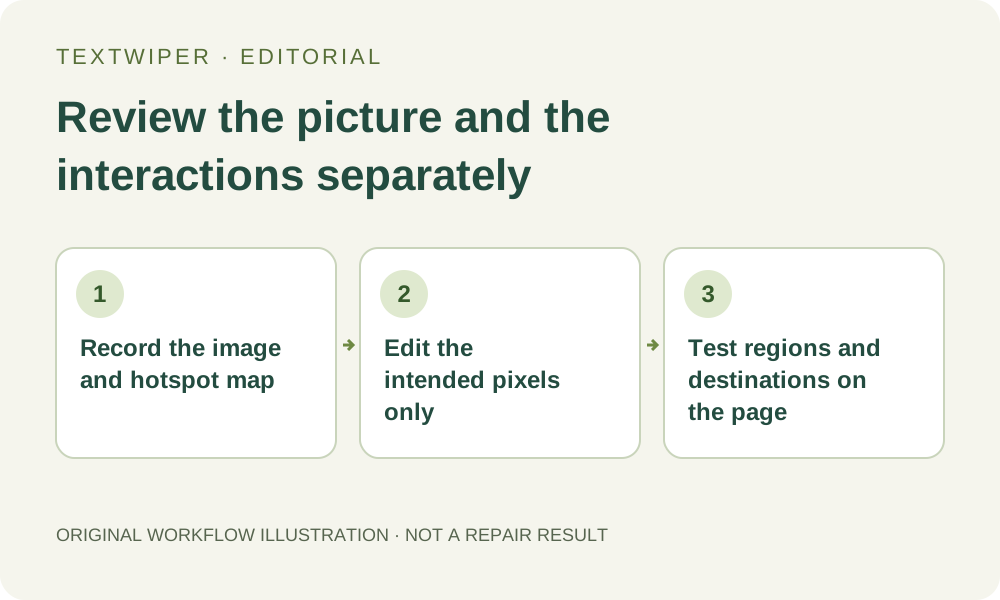
A clickable catalogue image has two deliverables: the visible picture and the website’s interactive regions. Removing a disposable label from the picture does not move, rename or repair those regions. Keep the approved image geometry where possible, retain the site’s hotspot configuration separately, and test the actual page after replacement. Equal image dimensions alone do not prove that every click still reaches the intended destination.
Published 2026-10-30 · Updated
1. Identify where the interactive behavior actually lives
Use an image and website you are authorized to revise. Ask the site maintainer whether the picture uses an HTML image map or another interactive overlay. In an HTML image map, map and area elements define regions and links outside the image file. The HTML Standard source below supports that distinction; TextWiper does not inspect or edit those elements.
Keep the current approved picture and the site configuration in the appropriate project. If an unwanted label is a live page overlay rather than embedded pixels, change it in that website’s own editor. Cleaning the underlying image will not remove a separate overlay, and downloading PNG cannot package the page’s interactive behavior into the image.
2. Record the regions that must still correspond to visible objects
List each affected hotspot’s visible object, intended destination and current region configuration with the site maintainer. For example, a department in your own illustrated catalogue may need to keep linking to that department after a temporary review stamp is removed. The example is a planning case, not a new website compatibility test.
Record the source image’s dimensions, orientation and important object positions. Also identify the image file actually displayed on the relevant page. Do not copy coordinates from a fitted editor preview and call them the site’s hotspot values. External scaling, a cropped placement or a different image variant needs its own treatment in the site’s implementation.
3. Edit the original asset without making an unplanned geometry change
Open the verified supported still file in TextWiper and check its content and dimensions. Use Brush or Area only for a disposable embedded annotation. Leave the visible boundaries that identify clickable objects outside the green mask, trimming with Erase and using Protect where helpful. Optional recognition needs its upload permission and does not identify which objects are hyperlinks.
Quick or Smart manual repair returns a candidate at the loaded image’s dimensions, but the reconstructed content can still alter a recognizable boundary inside the selection. Retaining the rectangular canvas is not enough if a department outline or product position is changed. Do not crop, resize or rotate an intermediate file in another tool without deliberately revisiting the external hotspot plan.
4. Accept the picture before changing the website reference
Inspect the full result, including every visible object that anchors a hotspot. Use comparison to locate changes and then return to the complete picture. Download an accepted PNG and reopen it, checking the actual dimensions and alignment landmarks against the original. A screenshot of the editor is unsuitable as the replacement asset.
If a necessary object or boundary was reconstructed incorrectly, reject the candidate or use the editable source. Do not move a website hotspot merely to conceal a poor repair unless an authorized layout change is genuinely intended and reviewed. Keep the accepted image revision distinct from earlier candidates so the publishing step cannot accidentally select an obsolete file.
5. Replace the image through the website’s supported workflow
Give the approved file to the responsible maintainer or use your authorized publishing controls. Preserve or deliberately revise the separate hotspot configuration. TextWiper does not upload to your site, rewrite coordinate values or verify that the page references the correct asset. A successful upload is not evidence that the interactive regions remained aligned.
Open the actual updated page in the relevant display conditions. Test each affected region near its center and near meaningful edges, and check adjacent regions for accidental overlaps or gaps. Follow the resulting link and confirm the intended destination. If the page uses responsive sizing or alternate images, check those actual states instead of assuming one desktop click proves every placement works.
6. Approve accessible navigation and the saved visual together
Ask the site maintainer to check the supported keyboard path and text alternatives or equivalent text links for the destinations. A clean visible label does not update the words presented through the website’s navigation. The HTML Standard describes text for linked image-map areas; the practical accessibility review still belongs to the complete page, not this raster editor.
Record the image revision, site configuration and page states that were actually checked. Keep the original asset and configuration separately. Manual editing and downloads remain free during beta, and no whole-image automatic request is required for this handoff. Accept the task only when both the picture and the relevant interactive destinations have passed their own review.
Sources
- WHATWG HTML Standard: Image maps — Supports the distinction between image pixels and map/area regions, link destinations and linked-area text. It does not certify TextWiper or any site-specific replacement workflow.