PRACTICAL IMAGE EDITING
Choose Analytics and Image-Recognition Upload Permission Separately
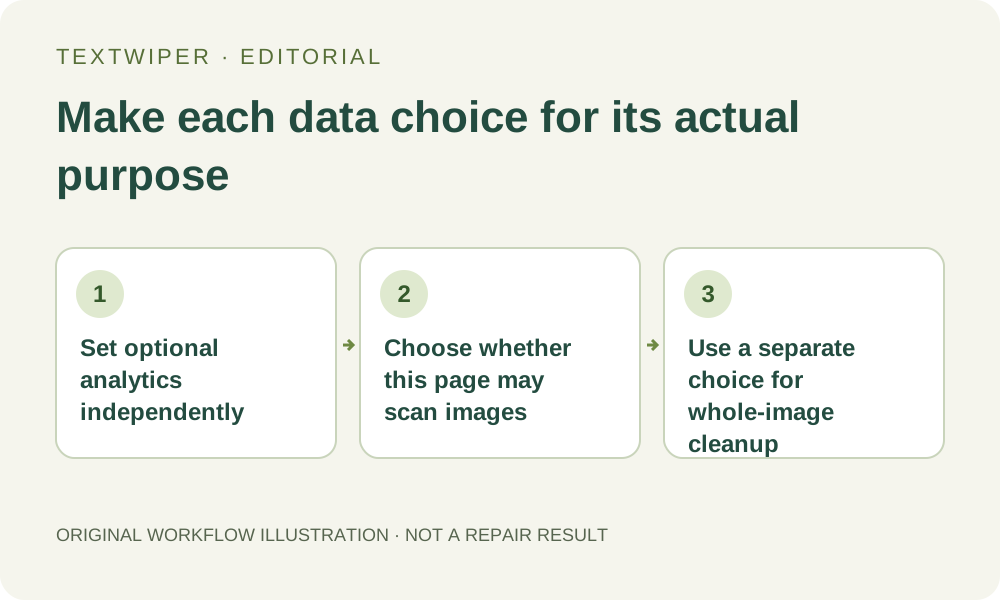
You can reject optional analytics and still edit an image. That choice is separate from permission to send a resized working image for Find text, and separate again from the whole-image automatic cleanup trial. Read each request by its purpose. Signing in or allowing statistics does not mean that every photograph is automatically submitted for recognition or repair.
Published 2026-10-27 · Updated
1. Start with the editing task rather than an all-or-nothing assumption
Opening a supported local file in the editor does not automatically scan it, repair it or create a download. If you can identify the unwanted pixels yourself, Brush, Area, Erase and Protect let you build a manual mask. Quick and Smart repair calculate in the browser, with required application resources loaded as needed.
This local workflow does not mean the website makes no network requests. Loading pages and repair resources, checking service availability or opening an account action are distinct from uploading the photo for recognition. Use a permitted source and choose the features you actually need rather than treating one consent button as a universal privacy switch.
2. Set optional statistics in Analytics preferences
Use Analytics preferences in the footer to read the current statistics choice. Reject analytics keeps the editing tools available. If your browser sends a recognized GPC or Do Not Track signal, analytics stays off. A statistics script that fails to load also does not stop an image edit. These conditions are separate from recognition service availability.
When analytics is allowed, the configured site can measure fixed feature and workflow events. It does not send your images, recognized text, keyword entries or filenames as analytics event content. Withdrawing consent stops future collection through this site preference; it does not erase data Google already received. Do not grant analytics merely to unlock Find text or downloads.
3. Decide separately whether to allow text-recognition upload
Choose Find text only if you want recognition. Before the first approved scan in the page, a dialog explains that a resized working image will be sent to TextWiper and its text recognition service providers. TextWiper does not save that recognition image or transcript; providers handle data under their own policies. Read that scope even if you already rejected or allowed analytics.
Allowing text recognition applies to images you explicitly scan in the current page, including batches. It is not a permission prompt for every later image in that page. Closing or reloading the page resets this recognition permission, while reloading also discards unsaved workspace content. Cancel the prompt when you do not want the upload and continue with manual selection instead.
4. Keep account synchronization separate from a picture workspace
An optional account can save supported editing preferences and user-entered keyword templates. It does not store the loaded image, recognition transcript, mask or finished manual output as a project. Sign-in is not required for manual selection, manual repair or download, and it does not bypass recognition limits or replace the recognition upload choice.
Words you intentionally save in a synchronized template are account data, unlike a transcript merely displayed after recognition. Review what you type before saving a rule, especially when the picture contains private client wording. Do not assume that a statistics rejection blocks a preference save you explicitly request or that signing out transfers an unfinished image elsewhere.
5. Read the automatic-cleanup choice as a different operation
The watermark page also offers a limited signed-in automatic cleanup trial. It has a separate upload choice and uses the whole working image, including text and graphic marks. The current green manual selection is not the remote processing boundary. Blue protected areas are restored from the original in the browser when composing that result; this does not make the remote input a cropped selection.
An accepted automatic attempt uses trial allowance even if processing fails or you stop waiting. Do not select it merely because you declined recognition upload or because the two actions both mention finding or removing text. If its upload scope or limited allowance does not fit the task, remain with the independent manual workflow. There is no paid fallback to enable from this guide.
6. Review the final file and retain the choices you intended
After a deliberate manual repair, inspect the full result, use comparison only when useful, and download the accepted PNG or JPG. Open the actual file to verify the target and retained content. A statistics choice, recognition permission or account confirmation is not evidence that an image was successfully repaired or saved.
Return to Analytics preferences when you want to change statistics collection. For recognition, decide before explicitly scanning another source within an already permitted page. Save useful output before closing that page. This guide explains the separate implemented choices; it does not claim that all processing is offline, that every provider has identical policies or that changing consent recovers prior remote submissions.