PRACTICAL IMAGE EDITING
Remove TAG but Keep tag? Select the Intended Image Label by Location
If one label should disappear while a differently capitalized label must remain, treat the job as a location-specific selection. TextWiper keyword matching folds letter case and normalizes some character forms. Whole word or phrase does not enable case sensitivity. Inspect the actual occurrences and their regions instead of expecting two visually different spellings to become separate rules.
Published 2026-10-30 · Updated
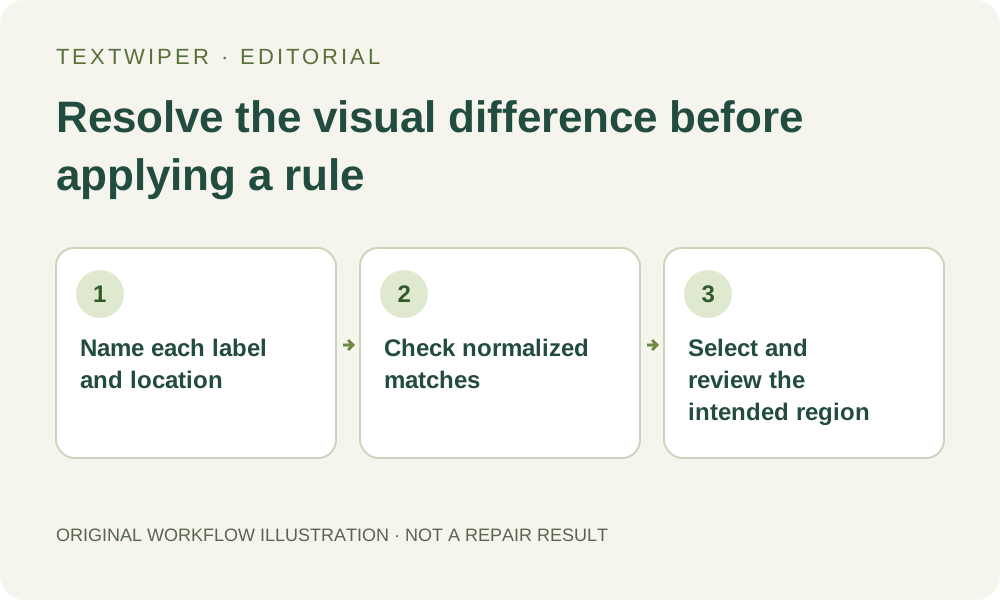
1. Describe the distinction that the edit must preserve
Keep the authorized original and list the target together with its location. As an illustrative example, a temporary TAG stamp may need removal while a lowercase tag word inside a retained sentence must stay. These invented labels explain the decision; they are not a new recognition test or a promise about how a particular font will be read.
Record every occurrence that matters, including a full-width form such as TAG if the source contains one. Capitalization and visual width can carry a design distinction even when the wording looks related. A removal instruction that merely says tag is incomplete when those different appearances have different purposes.
2. Understand why the matching choices cannot express this exception
Contains phrase and Whole word or phrase control matching scope and word boundaries. They do not provide a case-sensitive search switch. For ordinary Latin text, TAG and tag can normalize to the same matching form. Full-width Latin letters can normalize to their ordinary-width counterparts too. Choose the option for boundaries, not for preserving typography.
Putting TAG in removal words and tag in keep words is therefore not a dependable way to remove one and retain the other. Where normalized keep and removal rules overlap, protection takes priority. That can prevent the intended removal instead of creating a capital-letter exception. Matching also cannot restore a capitalization difference that recognition already read incorrectly.
3. Inspect existing detections before requesting another scan
If the picture already has detections, compare each displayed spelling with its visible source. Use Apply to detected text only when you deliberately want to inspect the current rule against those positions. Look at every green location, including a lowercase or full-width occurrence you expected to remain. A selected count does not explain which visual distinction was preserved.
Find text is optional and asks permission before sending a working image. Use it when location suggestions would help, then read the returned wording yourself. Repeating recognition is not a way to turn matching into a case-sensitive engine. If both labels were returned with the same spelling, use their positions rather than inventing a keyword that supposedly distinguishes them.
4. Replace the ambiguous rule with a deliberate spatial choice
If conflicting keep rules have already been applied, unticking a detection does not remove their blue protection. Save any useful result and note your manual selection plan first. Clear selection clears detected choices and all drawn strokes, including rule-created protection; it also clears hand-painted work you may need to rebuild. Then choose the intended detection when its real region is suitable, or use Brush and Erase for a defensible boundary. Do not reapply the same conflicting rules.
Rebuild necessary Protect coverage beside the target, checking that blue does not retain the unwanted label itself. Words or Characters cannot invent finer positions that recognition did not supply. Read all differently capitalized copies again before repair. Do not choose Scan & erase matches while resolving this exception: it proceeds into matched repair rather than asking which capitalization you meant.
5. Read both the removed location and the retained spelling
Run an appropriate manual repair only after the combined green and blue mask is clear. Quick may suit a small plain label; Smart is another candidate for texture, not a spelling validator. Inspect the full result, then read the retained word with its original capitalization, punctuation and neighboring sentence. An empty target is not sufficient if another label changed.
Use comparison to locate a doubtful boundary and return to the full result to assess readability. Changing a selection invalidates the earlier candidate and returns to the original for another repair. Keep the complete intended mask in view rather than assuming the first change is permanently committed underneath a later choice.
6. Keep the one-off exception out of a misleading reusable rule
Download the accepted PNG or JPG, reopen the actual file and check every retained occurrence. Keep your source and a short location note separately. A saved keyword template stores rules, not this image’s positional decision, and will not remember which uppercase label you removed. Review another layout independently before reusing any rule.
When identical normalized strings need different treatment, manual location review is the reliable expression available here, provided the visible regions can be separated. Return to the editable source when the desired difference requires reconstructing joined lettering. Manual editing remains free during beta; the separate limited whole-image trial is not a case-sensitive text-selection mode.