PRACTICAL IMAGE EDITING
Choose Brush or Area for Dots, Thin Strokes and Tiny Marks
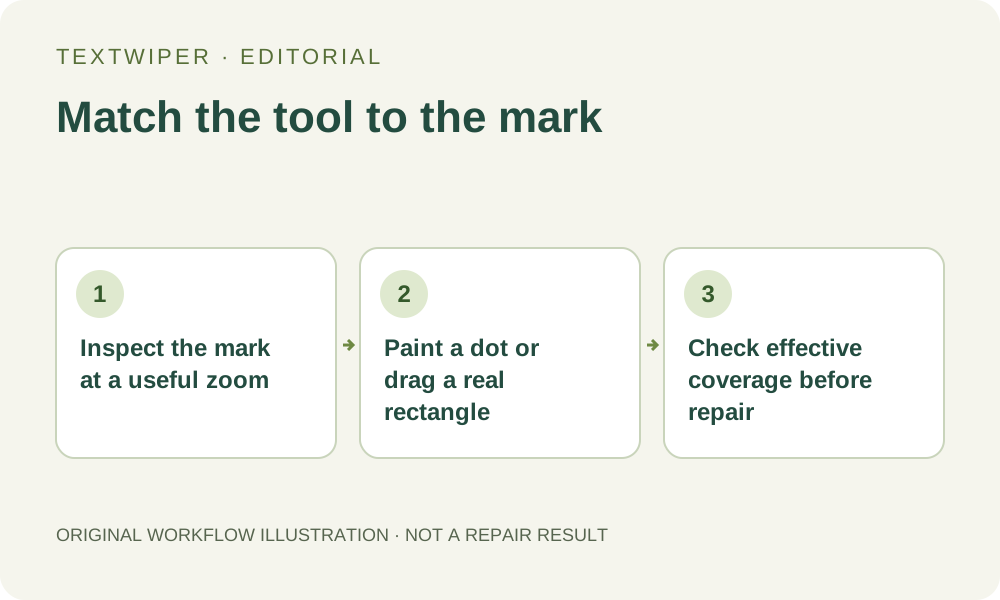
For a small annotation dot or thin added line, choose the tool by the replacement shape you can justify. A Brush click paints a round removal mark. Area selects the rectangle you drag and needs both width and height; a click or a perfectly flat drag does not create a useful rectangular area. Enlarge the view, mark only the unwanted annotation and inspect the effective green mask before asking repair to fill it.
Published 2026-10-26 · Updated
1. Decide whether the small mark is actually disposable
Begin with an image you own or may edit and identify what the mark means. A leftover annotation dot is different from a decimal point, a punctuation mark or a useful point in a diagram. Do not remove a tiny visible feature merely because it resembles noise. Read nearby wording and keep required symbols intact.
If the mark cannot be distinguished from a meaningful source feature, use the editable source or a clearer authorized copy. Repair estimates covered pixels and cannot determine that a tiny mark is accidental. This guide describes control choices; it does not show a newly tested repair or claim exact recovery beneath an annotation.
2. Enlarge the view before choosing a footprint
Use the editor’s zoom controls to make the boundary readable, then Pan to position it without drawing. The displayed percentage is a viewing scale, not a new output resolution. A tiny blurred mark can become larger on screen without becoming more certain in the underlying source.
Brush width is expressed in image pixels. The same width looks broader at a closer zoom. Choose its size against the source mark rather than your finger or the apparent screen width. Do not reduce the view and compensate with a much wider brush when the target sits close to a necessary thin line.
3. Use a Brush dot or short stroke for a compact shape
For a small round annotation, select Brush and use one deliberate click or tap to place a round removal mark. A short stroke can follow a narrow elongated annotation. Inspect the resulting green coverage, including its edges. The brush is a mask tool, not a colored paint tool and not an immediate destructive change to the source.
If the footprint catches useful content, use Erase to withdraw excess coverage or Undo to reconsider the recent stroke. Protection can retain useful visible pixels but can also keep an unwanted mark where the two overlap. Do not assume that a small brush can separate contributions already combined in the same source pixels.
4. Use Area only when a filled rectangle matches the task
Area is appropriate for a compact rectangular annotation on replaceable surroundings. Drag diagonally from one corner to the opposite corner so the selection has both width and height. A single click, a horizontal drag with no height or a vertical drag with no width does not establish a filled rectangular removal area.
Look at the actual mask rather than the gesture you intended. A nearly flat rectangle can still be too narrow to cover the whole thin line; a broad rectangle can remove useful corners around a dot. If a narrow irregular mark is the target, a short Brush stroke may express the task more accurately than repeatedly trying to create a tiny box.
5. Confirm that a usable mask remains before running repair
Turn on Show mask and inspect the finished mark after releasing the pointer. An interrupted gesture may be discarded. A colored overlay can also be hidden without clearing its mask, so hiding Show mask is not an undo. Return to Pan whenever you only need to move the image and check whether the actual green coverage is complete.
Blue protection or previous Erase strokes can exclude all of a very small proposed selection. The repair button depends on the effective nonempty mask, not on whether the text list contains an item or whether you touched the canvas. Correct the selection first instead of starting recognition or switching to a whole-image trial to solve an empty-area problem.
6. Evaluate the tiny repair in the complete image
Run Quick or Smart repair deliberately, then inspect the full result. Check the former dot or line at close zoom and at the final viewing size. Look for a leftover fringe, a broken necessary symbol and an unnatural patch larger than the original target. Stop if the needed source information is too uncertain to judge.
Download the accepted PNG and reopen it, keeping the original separately. Manual drawing, local repair and downloads are free during beta without an account and can be used without optional recognition upload. Automatic whole-image cleanup is a separate finite signed-in trial; it is not needed to make Area accept a rectangle or to create a Brush dot.