PRACTICAL IMAGE EDITING
Check Color Consistency Before Image Repair: Find When the Difference Appears
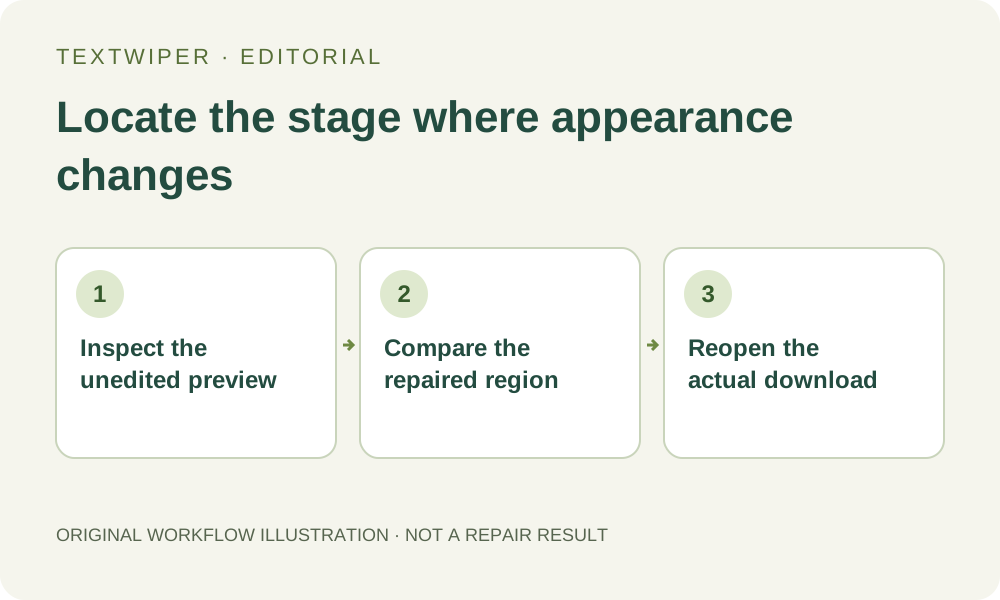
If a picture looks a different color after you start editing, first identify when the difference appeared. Was the unedited source preview already different from your usual photo application, or did a new patch appear only after repair? These are different observations. TextWiper does not provide a color-management or print-calibration workspace, so a careful comparison helps decide whether to fix the source workflow or reject a repair candidate.
Published 2026-10-21 · Updated
1. Establish a visual reference before changing pixels
Keep the original file and view it in the application you normally use for that image. Note what looks wrong rather than relying on a vague impression: the whole picture seems warmer, a dark background is lighter or only one repaired area has a different tint. Use your own or authorized material and avoid changing a master merely to make a quick comparison.
Different applications and displays can show an image differently. Comparing unrelated windows, screenshots or brightness settings adds uncertainty. A visual check is useful for locating a problem, but it does not measure color accuracy or establish that either display is calibrated. For color-critical work, use the documented process required by your normal production tools.
2. Inspect the source preview before any repair
Open the image in TextWiper and pause before brushing or running cleanup. Compare recognizable regions in this unedited preview with your reference, paying attention to the whole image as well as the planned repair site. If a difference is already visible, do not attribute it to a repair that has not happened. Save that observation as an import or display question.
Do not assume that a matching filename, file extension or pixel count proves identical color handling. TextWiper works with a browser-decoded image and does not promise to preserve every embedded color profile or professional color workflow. If the initial preview is unsuitable, return to the source application and prepare a documented copy appropriate for your destination, keeping the original intact.
3. Make one controlled local comparison
When the unedited preview is acceptable, use a small selection to judge the repair itself. This is an inspection workflow, not a promise that another mode will correct a color difference. Avoid changing the source copy, selection and browser conditions all at once.
- Identify the authorized lettering and a nearby visible region whose appearance should remain consistent.
- Use Brush or Area to select the lettering, trim excess with Erase and protect adjacent details when needed.
- Try an appropriate local Quick or Smart repair and inspect the full result before zooming into the patch.
- Use Show comparison if helpful, keeping the same image position and zoom while comparing source and result.
- Check whether any difference follows the repaired boundary or was already present across the unedited image.
4. Judge a local patch without calling it a profile correction
A repaired region may have an unsuitable tone because the estimated background does not fit its neighbors. Inspect transitions across the selection boundary, smooth gradients and recognizable material colors. If only the patch is wrong, return to the source and revise an excessive selection or reject the candidate. Protect can preserve visible detail, but it cannot specify the true color of pixels hidden by text.
Selecting more background is not automatically a fix: it can replace more valid context with estimates. Do not repeatedly process the whole picture to correct one uncertain patch. The separate automatic cleanup trial can change details throughout an image and has its own sign-in, upload and allowance requirements; it is not a color-profile repair or calibrated matching service.
5. Compare the actual download in a consistent setting
Download the approved candidate and reopen that exact file. First compare it with the editor result under consistent browser and display conditions; then check it in the intended destination. A PNG download and a JPG download use different encodings, so keep the format fixed while investigating a stage change rather than comparing several uncontrolled variants.
For local repair, retaining original decoded pixels outside the removal region does not promise identical embedded profiles or identical display in every application. A visual change in another viewer needs that viewer’s workflow checked separately. Likewise, a JPG compression difference should not be described as proof that the repair altered every source pixel. Record what you actually observed and where.
6. Keep a usable copy or return to a suitable source workflow
If the source preview, local result and actual download are acceptable for the intended use, retain that specific file and note the format you checked. For brand-critical or print-critical work, ask the responsible reviewer to approve the result in the required environment. TextWiper offers no numerical color-error report, professional profile validation or universal screen-to-print guarantee.
Manual selection, local Quick or Smart repair and downloads remain free during beta without an account. Optional recognition requires permission to upload a working image. The goal here is to locate an appearance difference with fewer assumptions, not to declare a color conversion successful. Stop if the destination requires a color workflow that the available source and tools cannot verify.
Sources
- Print a hard proof — Describes proofing under specific printer, paper and display conditions; browser repair preview is not a calibrated print proof.