PRACTICAL IMAGE EDITING
Check a Cleaned Equirectangular Panorama in Its 360 Viewer
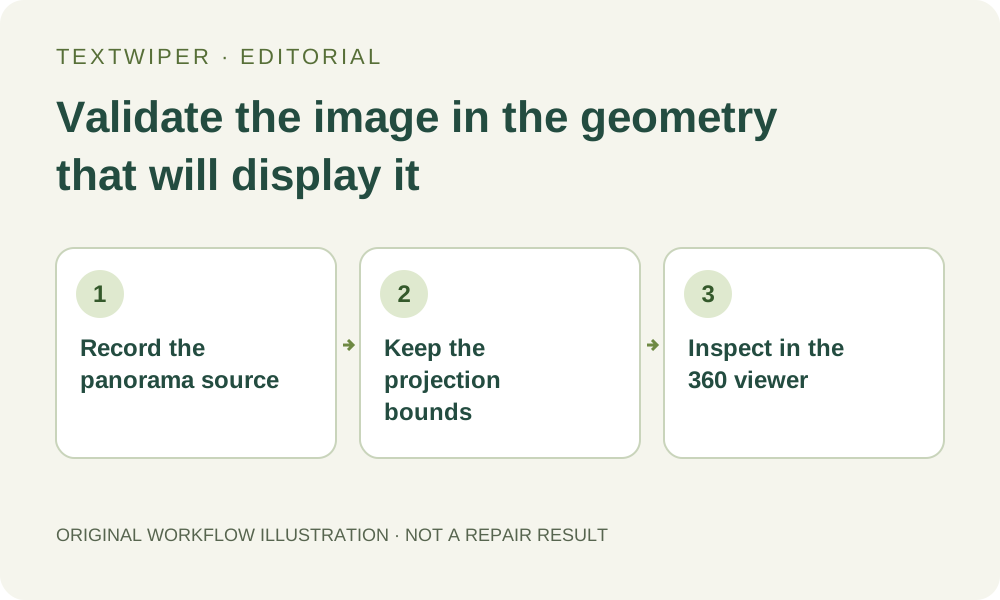
An equirectangular panorama is a flat image intended for a different viewing geometry. A small authorized cleanup can appear reasonable in that rectangle and still look wrong when the scene wraps around the viewer. Preserve the panoramic source and its external configuration, limit any browser edit to an appropriate supported copy, and return the actual output to the intended 360 viewer before approval.
Published 2026-10-30 · Updated
1. Confirm the source is a panorama asset
Use your original panorama export rather than a screenshot of one view inside a virtual tour. A screenshot records a chosen viewing direction and field of view; it is not the full wrapped source. Keep the native panorama project and the unedited raster export separately, with any configuration your established publishing workflow needs.
Check the destination’s expected format. For example, Pannellum documents equirectangular, cube-map and multiresolution inputs, with different preparation paths. This guide concerns a supported single equirectangular working image. It does not turn an arbitrary wide photograph into a panorama or provide conversion between those external formats.
2. Establish the unedited viewer check first
Open the unchanged asset in the existing 360 viewer and inspect the area to be edited. Record where the added label appears relative to recognizable scene details, and rotate far enough to inspect the horizontal join. This separates a pre-existing stitching or viewer-configuration defect from a change introduced during cleanup.
Check the horizon and look toward the top and bottom where the projection appears stretched in the flat file. Do not treat those regions as interchangeable copies of an ordinary tile edge. TextWiper’s flat viewport has no spherical navigation or panorama-aware repair, so it cannot show whether a candidate behaves correctly when viewed in that geometry.
3. Keep the original bounds and respect input limits
For a suitable working copy, preserve the full projected bounds and intended orientation. Do not crop a strip, move an edge or add a border merely to make the flat picture look tidier. Such changes alter the image supplied to the external mapping and need a separate, deliberate panorama-production procedure.
The current manual editor accepts at most 4096 pixels on either side, 16 megapixels and 10 MB per file. A larger panoramic master should remain in a suitable production tool. If an explicitly approved smaller derivative is adequate, prepare it externally and record that resolution change; do not describe its repaired download as the untouched full-resolution master.
4. Select only a manageable authorized overlay
Open the checked working copy and confirm its dimensions before selecting. For a separable temporary label, Brush or Area can define the manual region without OCR. Trim excess coverage with Erase and protect visible details as needed. Choose a bounded repair only when the missing content can be judged from the available source.
A mark crossing the horizontal join or covering important structure near a pole is a reason for extra caution. The repair does not consult a wraparound neighbor or understand the projection. If a reliable repair needs information across that boundary, use the panorama source or a suitable panorama-aware tool instead of assuming local repair can reconstruct it.
5. Load the actual saved candidate into the target workflow
Inspect the full flat result, download a reviewed PNG and reopen the saved file. Check the expected dimensions, framing and visible details before using your normal external panorama-import procedure. TextWiper does not publish virtual tours, preserve a panorama project or guarantee retention of metadata and configuration required by a particular viewer.
Keep the original configuration available and follow the target application’s documented way to supply any needed projection or view information. Do not blindly copy unrelated metadata or overwrite the only original asset. If your workflow generates multiple derived files, regenerate and identify them externally rather than assuming one downloaded PNG has updated the entire tour.
6. Review a complete rotation before accepting
In the actual viewer, rotate through the repaired area, the horizontal join and a complete turn. Look up and down as well as along the horizon. Compare the scene structure, required lettering and transition around the patch with the source under the same viewing conditions. A plausible flat thumbnail alone is not the acceptance test.
Reject a candidate that introduces a visible seam, warped scene detail or unreadable required content. Keep the source export and the verified delivery separate, and record which viewer setup was checked. This workflow does not certify every projection, device or panorama size, and the separate whole-image automatic trial is not a panorama-preservation mode.
Sources
- Pannellum documentation: panorama formats — Documents equirectangular, cube-map and multiresolution inputs, and optional Photo Sphere metadata use. It does not certify this cleanup workflow or any edited panorama.