PRACTICAL IMAGE EDITING
Use Keyboard Controls to Select Recognized Image Text Before Repair
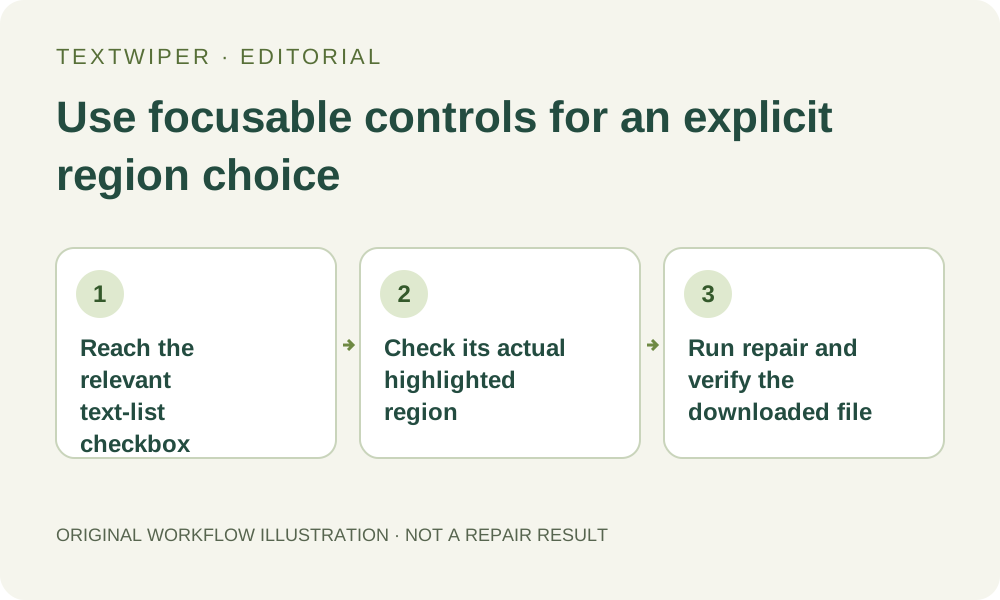
When recognized regions already fit the task, you can use keyboard navigation to reach the text-list checkboxes and choose the areas to repair. This avoids trying to paint a target with tool shortcut letters. Keep checking focus and the actual highlighted area: a keyboard-operated checkbox is still a recognition suggestion, not proof that its geometry is safe. The canvas does not provide a keyboard-drawing replacement for every manual mask task.
Published 2026-10-27 · Updated
1. Choose a task the available controls can express
Start with an image you own or may edit. A list-based path is suitable when the unwanted wording has a usable recognized region and nearby useful details can stay outside it. If the task needs a freehand boundary through overlapping letters, the native checkboxes alone may not express it. Decide this from the source rather than assuming a keyboard shortcut can draw an arbitrary outline.
This guide describes the implemented buttons, fields and checkboxes, not a complete accessibility certification or a newly tested screen-reader workflow. Browser and assistive-technology navigation can differ. If you cannot identify focus or verify a selected position, stop and use a workflow or assistance that lets you check the actual region safely.
2. Open the file and request recognition deliberately
Use Tab and Shift+Tab to reach the upload button and activate it with the appropriate native button key for your browser. The system file picker supplies the local source. After loading, navigate to Text language if you need an available recognition language, then Find text. Opening the file alone does not start recognition or select any letters.
Read the recognition upload dialog before accepting or canceling with its buttons. It requests permission to send a resized working image; manual repair does not make recognition a local-only scan. Wait for the current operation to return instead of repeatedly activating the button. A successful list starts with nothing checked, so the existence of a list is not yet a removal plan.
3. Navigate the text list without relying on a fixed key count
Move focus to the checkbox for the intended wording and use Space to change it. The list uses native checkbox controls associated with their visible text. After each change, verify where focus is and navigate again as needed. The application rebuilds the list when selection changes, so do not assume focus remains on the same item or that a fixed number of Tab presses always reaches the next target.
Look at the actual green region after each choice. Repeated wording can correspond to different locations, and a displayed confidence estimate does not decide which occurrence is unwanted. A mixed checkbox means part of its grouped underlying regions is selected. Use the available group deliberately rather than treating mixed as a completed partial repair or a new error.
4. Use form controls only for the decisions they support
Words and Characters reorganize real available regions; choosing Characters does not create exact cuts through every letter. You may also open Use your keyword library, enter a precise rule and use Apply to detected text when suitable detections exist. Inspect its selected and protected locations before continuing, just as you would after a checkbox choice.
Do not press B or P expecting a brush or protection stroke to appear. Those letters choose tools; drawing still depends on canvas interaction. Within an input or textarea the editor leaves ordinary typing alone, so a tool shortcut is not a way to leave the field. If required protection or trimming cannot be expressed with usable regions, stop rather than approving a broad mask solely because its checkbox is reachable.
5. Run an intentional repair after the selection is defensible
Navigate to the appropriate repair mode and Remove selected text, then activate the repair button once. It stays unavailable when there is no effective removal mask or an operation is busy. A disabled control is a state to understand, not a reason to keep pressing Enter. Quick and Smart repair can require resources to load and can produce artifacts on difficult sources.
Inspect the complete result when repair finishes. The optional comparison button is for checking changes, not a required step before the whole result becomes visible. If you change a detected selection afterward, the old candidate is invalidated and a new repair is needed. Use the full image and retained wording to decide whether the list-based route actually produced an acceptable file.
6. Save the real output and acknowledge a mask limitation
When a reviewed result exists, navigate to PNG or JPG and request a download, then reopen the actual file using the device workflow. Confirm that the intended occurrence is gone and retained details remain. The fact that a download button was focused or activated does not by itself establish that a file reached your chosen folder.
Keep the original separately and save useful output before closing or refreshing the page. Manual editing remains free during beta without an account, but a keyboard-only list route cannot solve every source. If recognition fails, regions are too coarse or a hand-drawn boundary is necessary, use an appropriate alternative rather than presenting an uncheckable edit as complete.