PRACTICAL IMAGE EDITING
Remove Added Text Across a Sharp-to-Blurred Transition
A caption can cross a sharply focused subject and a softly blurred background in the same word. The appropriate repair should not make both areas equally sharp or equally smooth. First record where visible detail changes, then select the overlay without swallowing the references that reveal that transition. TextWiper has no focus-map editor or depth-of-field reconstruction control. This workflow helps you reject inconsistent candidates; it does not establish the hidden scene or present a new tested photograph.
Published 2026-10-24 · Updated
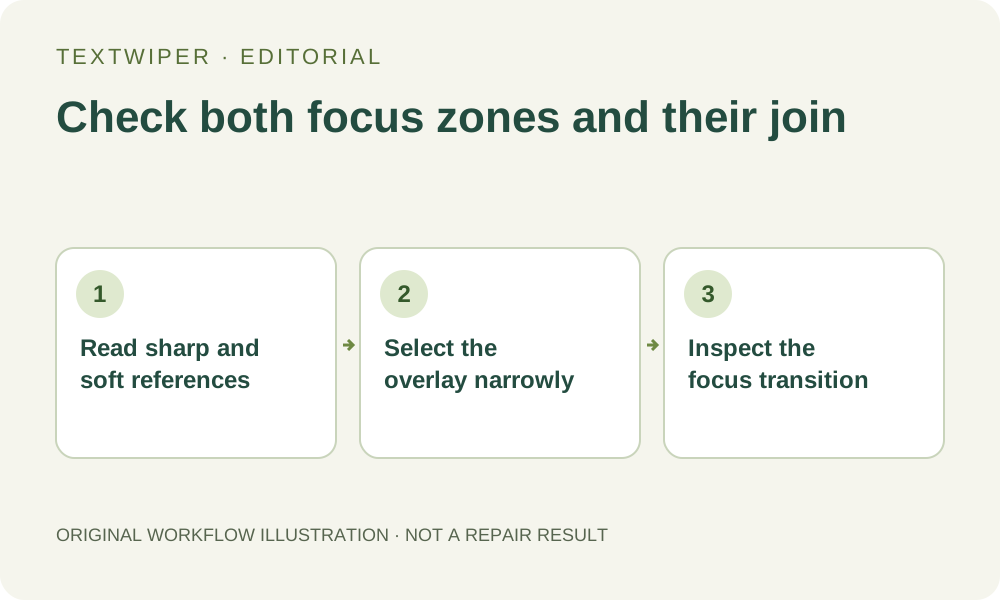
1. Separate an added caption from the photograph's softness
Use a photograph you own or are authorized to edit, retaining the unmodified file. Confirm which lettering is unwanted and which visible details belong to the subject. Soft background detail is not automatically damage. If the input already has a fuzzy distant sign, text removal will not supply the missing letters or turn it into a readable original.
Look for an unmarked source or separate caption layer first. Where the overlay covers an identifying subject detail, choose another source if accuracy is required. A newly sharp-looking reconstruction can be less faithful than an honestly blurred area. This task concerns consistency of the presented image, not refocusing a photograph after capture.
2. Establish a baseline at one consistent viewing scale
Inspect a visible subject edge, nearby fine detail and the background beside the caption at the same zoom. Note where the edge is crisp, where detail softens and whether the transition is gradual or interrupted by a foreground boundary. Moving closer to the screen or changing zoom between two checks can make unrelated regions seem comparably sharp.
Compare local references with similar apparent depth rather than choosing the sharpest patch anywhere in the picture. A background beside the shoulder is not the same reference as a sharply focused eye. Keep the existing image as the baseline, including any natural irregularities. Do not assume the scene must contain a perfectly smooth or symmetrical blur pattern.
3. Make a mask that leaves both kinds of reference visible
Recognition is optional and requires permission to upload a resized working image. It may locate the word without separating the focused subject from the background beneath it. Build the final selection by the visible overlay, not by assuming one recognized rectangle represents a uniform surface.
- Open the original and locate where the unwanted lettering crosses the focus boundary.
- Use Brush to follow the letters and any visible outline or shadow with short strokes.
- Use Erase to remove accidental coverage of intact subject detail or useful background references.
- Protect visible details that must remain, checking that the same protected pixels do not retain unwanted lettering.
- Inspect the mask on both sides of the transition before running a local repair.
- Keep all intended removal regions in the revised mask if you later change its coverage.
4. Evaluate the two zones before choosing another attempt
Quick repair can be a useful first candidate for small lettering on a fairly even blurred area. Smart repair may give another candidate where visible texture matters. Neither mode offers separate focus settings for the portions of a single selection. A mode that works on the background may still damage a fine edge of the subject.
Inspect the full result before deciding what to change. Altering the mask invalidates that candidate and the next repair uses the loaded original. Do not assume successive attempts accumulate a correct background while fixing only the sharper portion. If you need a deliberately separate editing pass, save and review the first accepted file before choosing it as a new input.
5. Check sharp detail, soft detail and the transition in order
First inspect the subject detail that was visible before editing. Look for a softened edge, a duplicated feature or a sharp fragment that ends at the old lettering. Next inspect the background: a new crisp texture island, a repeated hard edge or an unnaturally flat block can disagree with the surrounding softness even when its color matches.
Then follow the transition through the former caption. Check for an abrupt ring, a narrow sharp strip or a blurred patch that spreads across an originally clear boundary. Use Show comparison to locate the change, then hide it to assess the whole image at its intended display size. Do not require blurred background to become sharper merely to appear finished.
6. Accept consistency without claiming recovered focus
Stop if the candidate changes an essential visible feature or if all evidence of the hidden transition is covered. Repeatedly widening the selection cannot establish where the original focus changed. A less obstructed frame, an unmarked version or a new photograph may serve the task better. Preserve the input when it is needed to document what was actually recorded.
Download an accepted PNG, reopen it and inspect the destination's resized copy as well. Manual selection, Quick repair, Smart repair and downloads are free during beta without an account. Whole-image automatic cleanup is a separate limited sign-in trial and may alter details elsewhere; it is not a refocusing feature. The diagram here illustrates review decisions, not measured optical quality.