PRACTICAL IMAGE EDITING
Prepare One PDF Page as an Image Before Removing Added Text
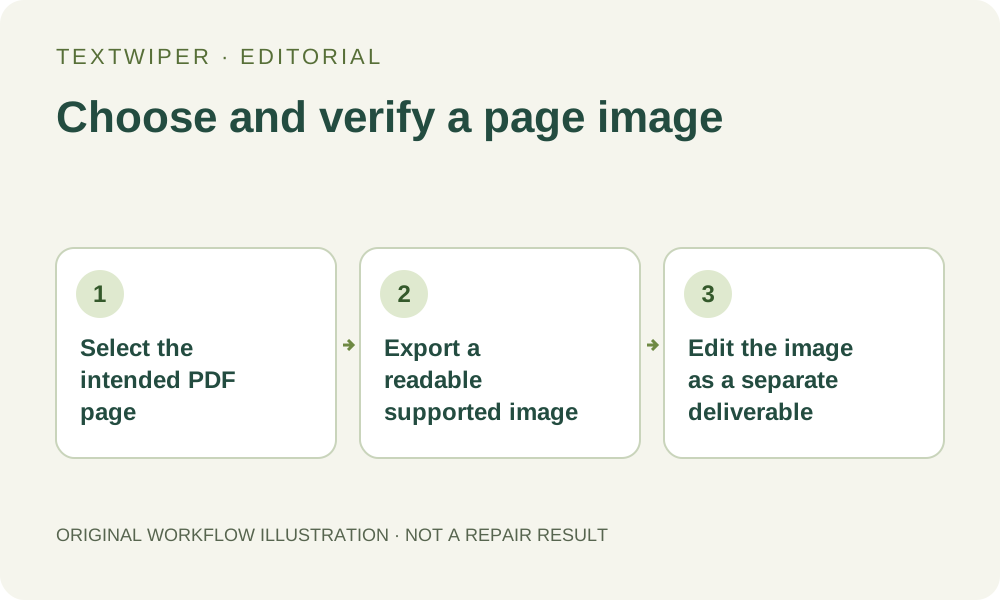
A PDF page is not an input image for TextWiper. To clean an added caption on one page you own or may edit, export that page as a JPG, PNG or still WebP in another application first. The result will be a raster image. This process does not edit the PDF’s text objects, links, other pages or document structure.
Published 2026-10-20 · Updated
1. Choose the correct kind of editing for the job
First identify what you need to deliver. If the requirement is to change searchable wording, preserve accessible document structure or revise several PDF pages, return to an appropriate document editor or the source layout. TextWiper’s selection tools replace selected image pixels; they do not provide a PDF editing interface.
A page-image workflow is useful when you need a separate illustration of one authorized page with your own obsolete overlay removed. Preserve the PDF original and check whether the overlay can be removed from its source project instead. Do not remove required annotations, signatures, disclosures or attribution to make a document appear different from its real status.
2. Identify the actual page and its visible boundary
Open the PDF in an application that can render and export a chosen page as an image. Confirm the page visually: a printed page label can differ from the position shown in the viewer. Check the title, a distinctive diagram and the corners rather than relying on a remembered page number alone.
Decide whether the export should include the whole visible page or a separately chosen area. TextWiper is not a PDF page extractor or crop tool. An external application’s page-boundary or crop settings can omit a footer, reference or note. Verify what actually appears in the exported file, not only what was visible while browsing the PDF.
3. Export and inspect a suitable raster copy
- Export only the required page or agreed area in an external application as JPG, PNG or still WebP. Use a separate filename and retain the PDF source.
- Open the exported image independently. Check the page identity, all four edges, diagram completeness and any information that must remain.
- Inspect the smallest necessary text at a useful viewing size. A low-resolution screenshot may make it impossible to distinguish a note from an original stroke.
- Check the manual image limits: up to the displayed 10 MB, at most 4096 pixels per side and 16,000,000 total pixels. Prepare another copy externally if required.
- Open the verified image in TextWiper and check its displayed dimensions before making a removal selection.
4. Select only the added annotation you intend to remove
Use Brush for an irregular added caption, or Area only when the whole rectangle may be replaced without destroying useful content. Zoom in and use Erase to withdraw mistaken green coverage. Protect can retain visible original detail in a manual repair, but it also retains any unwanted lettering occupying those same pixels.
Find text is optional and asks for recognition upload permission. A correct transcript does not distinguish original document text from your later note. Check the target against the PDF source before selecting it. Where a note crosses a chart axis, handwritten stroke or essential number, the image alone may not support a defensible removal boundary.
5. Inspect page information as well as the repaired patch
Try Quick repair for a small annotation on an even page background; Smart repair may be considered for more texture. A paper-colored fill can still erase meaningful marks or look uneven. Inspect the complete result, then use comparison to check the annotation edge, nearby punctuation and lines that pass through the former caption.
Also read the retained page title, legend, numbers and units. Exporting a page from PDF can change its scale before TextWiper even opens it, while repair estimates covered image detail. Neither operation verifies document meaning. If important content is damaged or ambiguous, reject the candidate and return to the source project rather than using a plausible-looking reconstruction.
6. Deliver the checked image without claiming a repaired PDF
Download PNG or JPG and reopen it to verify the page image and intended edit. This download is not a modified PDF. It does not preserve PDF searchability, embedded links, bookmarks or interactive fields as document features. Keep the image separate so that the original document is not mistaken for the edited illustration.
If a later task requires placing the image into a PDF, use another application and inspect that new document independently. This guide does not provide a conversion back to the original PDF structure or a batch page-rendering service. Manual image selection, repair and download are free during beta; the separate whole-image automatic trial is unnecessary for preparing this single page image.