PRACTICAL IMAGE EDITING
Keep Brand Names When Removing Promotional Words
Removing SALE should not automatically remove the SALE inside WHOLESALE. Matching rules and the visible selection matter more than the shortness of your keyword list.
Published 2026-10-14 · Updated
Choose the boundary before scanning
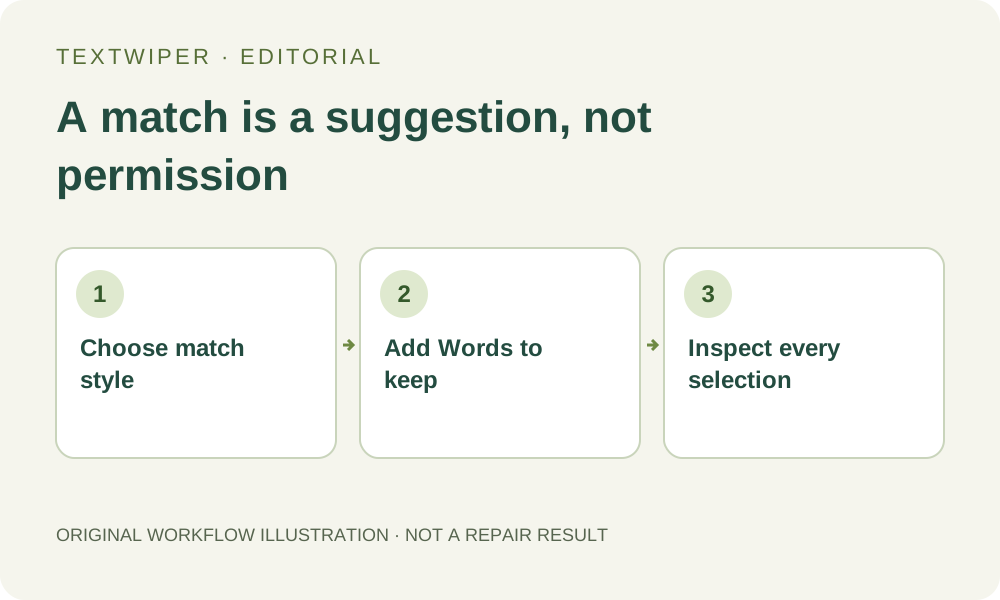
Contains phrase can match text inside a longer detected group. Whole word or phrase is a better starting point when an English promotion also appears inside another word. Detection can group several words together, so the boundary on the image still needs inspection.
In the self-created example, SALE is an obsolete label and WHOLESALE is useful copy. Add WHOLESALE and NOVALE to Words to keep when applying your rule. Keep rules take priority over removal matches; a conflict may intentionally leave a larger group untouched.
Check the rule on one image first
- Open the keyword library and enter removal and keep phrases separately. Do not paste a long unreviewed list.
- Choose the match style and use Scan & match my words when you want to inspect the selection before repair. Scan & erase matches repairs immediately, so use it only after checking your rule.
- Read the visible text list and image outlines. Switch to Characters for a smaller available boundary, or use Brush and Erase if the text is only available as a phrase.
- Paint Protect over a nearby logo or delicate detail if needed. Repair, inspect the full image and download only after review.
What if the brand still disappears?
Check whether the removal mask overlaps the brand, whether recognition merged the brand with the offer, and whether automatic whole-image cleanup was selected instead. These are different causes. A narrow manual repair and a whole-image cleanup do not have identical behavior.
Keep a small test image in the batch before applying the rule across ten different layouts. A phrase that is safe on one package may be placed directly over the logo on another.